
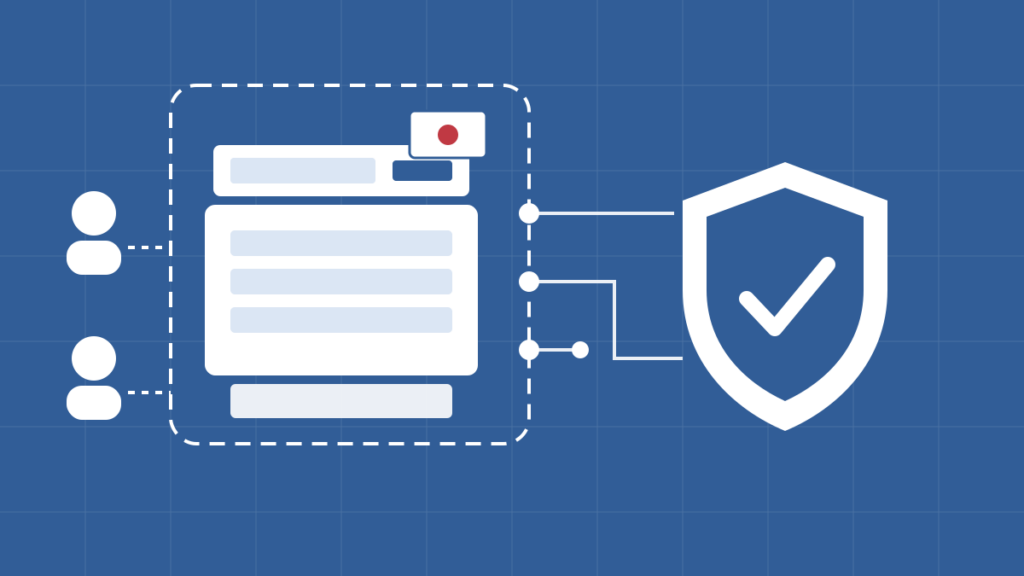
Quick answer: Zero trust printing means your copiers and printers stop trusting anyone just because they are on your office network. Every user, job, and connection has to prove who it is first. It matters because a modern copier is a networked computer with storage, email access, and scan-to-folder rights. Many of the right controls are available on newer business-class devices, but availability and defaults vary by model. The hard part is choosing, enabling, and maintaining them.
October is Cybersecurity Awareness Month, and zero trust printing is a good place to start because almost nobody thinks about the copier. Your firewall gets attention. Your laptops get antivirus. The machine in the hallway that scans tax returns, patient records, and contracts to email all day? It usually gets set up once and forgotten. Here is what zero trust means for that machine, what it costs, where it goes wrong, and ten steps you can take this month.
What is zero trust printing?
Zero trust printing is the zero trust security model applied to copiers, printers, and scanners: no device, user, or print job is trusted by default, even inside your own building. The model comes from NIST Special Publication 800-207, which describes zero trust as removing implicit trust based on network location and verifying every access request instead.
The old model was “castle and moat.” If you were inside the network, you were trusted. That worked fine when copiers were dumb boxes. It does not work when a copier can email files to any address, browse network folders, store thousands of scanned pages, and accept print jobs from anything on the Wi-Fi.
In plain English, zero trust printing asks three questions every time: Who are you? Are you allowed to do this? Can we prove what happened afterward?
Why does zero trust printing matter for office copiers?
Zero trust printing matters because your copier touches your most sensitive paper and your network at the same time. A current multifunction device (MFP) runs an operating system, holds an address book full of email addresses and network paths, often has internal storage, and talks to your email server. That makes it a target and a shortcut.
Here is what we see in real offices across North Florida and South Georgia:
- The admin password on the copier is still the factory default.
- Anyone on guest Wi-Fi can send a job to the copier or reach its web page.
- Scan-to-email will send to any address, so a file can leave the building with no record of who sent it.
- Confidential print jobs sit in the output tray for anyone walking by.
- Firmware has not been updated since the day the machine was installed.
None of those are exotic hacks. They are just open doors. Zero trust printing closes them one at a time.
What does zero trust printing look like on a real copier?
On a real copier, zero trust printing is a handful of settings and habits that work together. You can phase them in according to risk.
1. Every user signs in
Users authenticate at the device with a badge, PIN, or login before they can copy, scan, or release a print job. That is the “verify explicitly” part of zero trust. We cover the options in detail in our guide to card authentication for copiers.
2. Least privilege
Not everyone needs every function. The front desk may need scan-to-email; the intern may not need color. Role-based permissions limit what each person can do, which limits the damage from a mistake or a stolen login.
3. Encrypted connections
Print jobs, scans, and admin sessions should travel over encrypted connections, and older protocols your office does not use should be turned off. If it is not needed, it should not be listening.
4. Secure release
Jobs wait on a server or in the cloud until the user signs in at the device. No more payroll reports sitting in the tray. See our breakdown of secure printing for how this works day to day.
5. Logging you can actually use
Zero trust assumes something will eventually go wrong, so you need useful records: who used the device, which function they used, when, and—where supported—the destination. Decide where those records live and who reviews them.
6. Protecting the device itself
Firmware updates, verified startup, and application allowlisting keep the copier from running code it should not. This is the part most offices skip, and it is the part attackers count on.
How does the Canon imageFORCE series support zero trust printing?
Canon markets its imageFORCE series with several security capabilities that support zero trust principles. Canon’s device security page describes user authentication, encryption, system verification at startup, and Trellix Embedded Control, which uses application whitelisting to help block unrecognized code. Availability and activation requirements vary by model.
Canon also describes a Security Environment Estimation feature on imageFORCE devices that recommends security settings based on the device’s operating environment. For secure release and cloud-based print management, Canon pairs the hardware with uniFLOW Online, which we explain in our uniFLOW Online guide.
Two honest caveats. First, confirm which features are available on the exact model and firmware you are quoting and whether they must be enabled. Second, built-in controls do nothing at unsuitable defaults. Someone still has to configure, test, and maintain them.
Canon is not the only manufacturer offering device-security capabilities. Other business-class devices may support authentication, encryption, verified startup, logging, or related controls, depending on the model and configuration. The principles apply no matter whose name is on the machine.
How much does zero trust printing cost?
There is no single price for zero trust printing, because much of it is already included in a current copier and the rest depends on what you add. The real cost factors are:
- Device age. Newer business-class devices may include many relevant controls, but availability varies. Older machines may lack supported encryption, verified startup, or current firmware.
- Authentication hardware. Card readers are typically an add-on per device, plus badges if you do not already have them.
- Print management software. Secure release and centralized logging usually come from software such as uniFLOW Online or PaperCut, commonly licensed by subscription.
- Setup and configuration labor. Hardening settings, connecting to your user directory, and testing scan workflows takes technician time.
- Ongoing maintenance. Firmware updates and periodic settings reviews should be part of your service agreement, not an afterthought.
Ask for an itemized quote that separates hardware, software, setup, and ongoing service. If a quote just says “security package,” ask what is in it.
What problems should you expect with zero trust printing?
The biggest problem with zero trust printing is friction. Every added check is one more step for your staff, and people who get annoyed find workarounds. Other common issues:
- Legacy devices drag everyone down. One old printer that cannot handle modern encryption often forces weaker settings across the network. Sometimes the right move is retiring it.
- Scan workflows break. Tightening scan-to-email and scan-to-folder can break the workflows people rely on. Test before you roll out.
- Settings drift. A technician resets a device, a new machine arrives with defaults, and nobody notices. Security settings need periodic checks.
- Logs nobody reads. Collecting logs is not the same as reviewing them.
- Over-buying. A three-person office does not need an enterprise print server. Match the controls to the risk.
Zero trust printing vs. basic copier hardening: which do you need?
For many small offices, basic hardening is enough, and zero trust printing is where you grow into over time. Basic hardening means changing the admin password, updating firmware, turning off unused protocols, and keeping the copier off guest Wi-Fi. That alone closes the most common doors, and it costs little beyond a technician visit.
Full zero trust printing adds user authentication, secure release, role-based permissions, and centralized logging. That makes sense when you handle regulated or confidential data, have many users sharing devices, or need to prove who accessed what. Doing nothing is also an option, but it is rarely a good one when the device is scanning sensitive documents every day.
Who is zero trust printing a good fit for, and who is it not?
Zero trust printing is a strong fit for medical practices, law firms, CPA firms, and government offices that handle confidential records. It also fits any office where many people share a few devices and nobody can say who printed or scanned what.
It is a weaker fit for a small office with one desktop printer, a couple of trusted employees, and nothing sensitive going through it. For them, basic hardening plus firmware updates is usually the smart, affordable answer. Buying more security than your risk calls for just adds cost and frustration.
For medical offices, remember that a secure copier is one piece of the puzzle. Devices can be configured to support HIPAA requirements, but compliance depends on your policies, training, and agreements, not just the hardware.
10 zero trust printing steps for Cybersecurity Awareness Month
Use October to work through this list. Some items take minutes; authentication, secure release, logging, and workflow testing require more planning.
- Change every default admin password on every copier and printer.
- Update firmware on all devices, and put firmware updates on a regular schedule.
- Move copiers off guest Wi-Fi and restrict who can reach their web admin pages.
- Turn off network protocols and services you do not use.
- Require encrypted connections for printing, scanning, and admin access.
- Limit scan-to-email to approved domains or internal addresses where practical.
- Turn on user authentication, even a simple PIN, for scan and copy functions.
- Set up secure release for confidential printing.
- Decide where device logs go and who reviews them.
- Plan for end of life: confirm how stored data will be wiped before any device leaves your office. See copier data security at lease end.
What This Means for Tallahassee Businesses
For offices in Tallahassee, Thomasville, and across North Florida and South Georgia, zero trust printing is less about buying new gear and more about using what you already own. Plenty of local copiers have strong security features that were simply never turned on.
Advanced Business Systems has been servicing office equipment here since 1984. We sell and support Canon, Kyocera, Ricoh, and Toshiba devices, and our managed IT team looks at the copier as part of your network, not a separate appliance. If you want a second set of eyes on your fleet’s security settings, call us at (850) 222-2308 or request a review. For Canon-specific certifications, read our overview of Canon copier security.
Frequently Asked Questions
Is zero trust printing only for big companies?
No. The principles scale down. A small office can start with passwords, firmware updates, and keeping copiers off guest Wi-Fi, then add authentication and secure release as needs grow.
Do I need a new copier for zero trust printing?
Not always. Many newer business-class devices support some of these controls, but capability varies by model, firmware, and configuration. Devices that cannot meet required encryption, authentication, or firmware standards may need isolation or replacement.
Does zero trust printing slow people down?
A little, at first. Badge or PIN sign-in adds a few seconds. Secure release often saves time and paper by cutting forgotten jobs. Good setup and training keep the friction low.
Is zero trust printing the same as secure printing?
Secure printing, usually meaning secure release, is one piece of zero trust printing. Zero trust also covers authentication, permissions, encryption, logging, and protecting the device itself.
Related Resources from ABS
Sources and verification: NIST SP 800-207, Zero Trust Architecture; CISA Cybersecurity Awareness Month; Canon U.S.A. device security. Feature availability varies by model and configuration; confirm details for your specific device.