

UPS battery backup gives selected office equipment a short supply of power when the electricity goes out. To choose the right setup, first decide what you need to keep doing, then identify every device that task depends on. The unit must support that equipment for long enough to meet your goal, whether that means riding through a brief outage or shutting down safely.
Here is an easy detail to miss: your laptop may have plenty of battery left, but the internet connection can disappear as soon as the modem, firewall or network switch loses power. Keeping one device running helps only if the other equipment it needs is running, too.
These seven questions can help you review the backup power you already have or prepare for a purchase.
1. What do we want UPS battery backup to accomplish?
Start with the work. Do you want employees to finish a call, save an open file, keep dispatch moving through a brief interruption, or give a local server time to shut down? Each goal can lead to a different equipment list and runtime requirement.
Pick a small set of essential tasks rather than trying to keep the entire office operating indefinitely. Ask the employees involved what they would need and how long they would need it. A few concrete examples make the discussion easier than a general request for “backup power.”
Keep that goal connected to your business continuity plan. Battery backup is one part of preparing for an interruption. You still need data backups, recovery arrangements and a plan for employees if they cannot safely work in the building.
2. Which devices have to stay on?
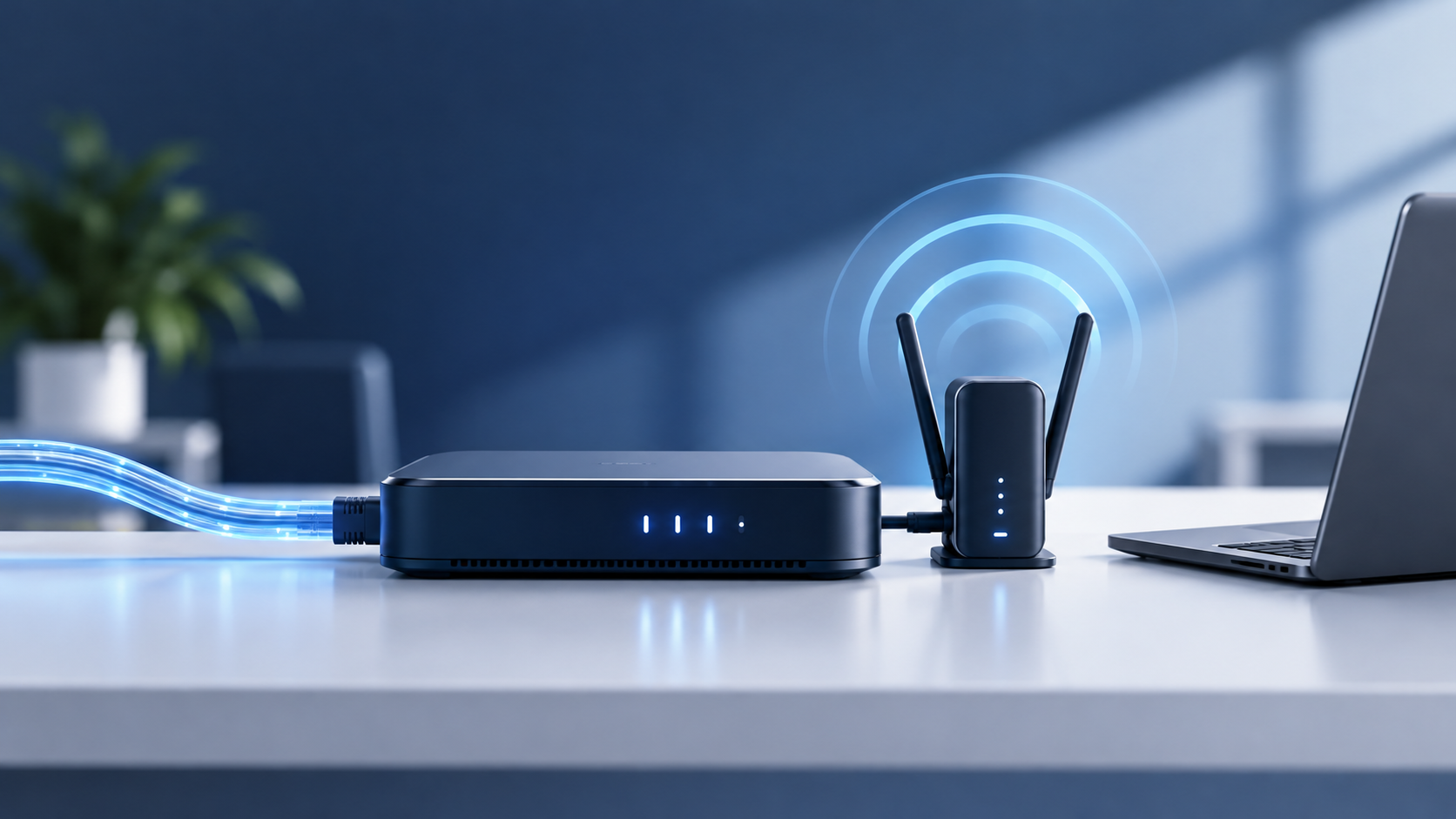
Follow one essential task from the employee’s desk to the service they use. A cloud application may need a laptop, wireless access point, network switch, firewall and the internet provider’s modem or fiber terminal. Some offices combine several of those functions in one box; others have equipment in more than one room.
Desk phones and wireless access points may get power through their network cables from a switch. If that switch turns off, protecting the device at the other end of the cable will not solve the problem. Ask your IT provider to show you where the power comes from.
Make a simple list of which devices connect to which UPS outlets. Some units have both battery-backed outlets and outlets that provide surge protection only. Check the labels and manual so you know what will stay on.
There is an outside limit as well: a UPS in your office cannot keep the internet provider’s network or a cloud service operating. Your plan should distinguish local backup power from continued internet access.
3. Can the unit support the connected equipment?
UPS products have power limits. Ask your provider to size the unit for the equipment you intend to connect, including likely additions. Both the watt rating and the volt-ampere, or VA, rating matter; the biggest VA number on the shelf is not automatically the best choice.
The practical question is, “What can this model safely support in our installation?” Schneider Electric’s UPS buying guide explains the distinction between power capacity and runtime. The final recommendation should be based on your equipment, rather than a generic office example.
Do not treat an empty UPS socket as an invitation to connect a copier, space heater or other substantial load. Schneider specifically advises against laser printers on its Back-UPS products. If printer backup is a requirement, have the provider design for it using the relevant manufacturers’ instructions.
Placement, ventilation, plugs and electrical circuits also affect the choice. Let qualified support or electrical personnel handle those requirements instead of experimenting with adapters or wiring.
4. How much time will it give us?
Capacity and runtime answer different questions. A unit may be able to power your equipment but provide less battery time than you expected. Ask to see the manufacturer’s runtime estimate for the proposed model at your expected load.
More connected equipment generally leaves less battery time. Battery age and operating conditions matter, too, as Eaton explains in its UPS FAQ. A new-unit estimate should not become a permanent promise. Check the product information for the exact configuration, especially if extra battery modules are proposed.
Now compare that estimate with the job you chose at the beginning. Is there enough time to save work and shut down? If you want to bridge to a generator, who will confirm that the equipment and sequence are compatible? Those are better questions than asking how long a UPS lasts without specifying what it powers.
Plan for an outage that exceeds the available time. Staff should know when to stop working and what to do next, rather than waiting for the batteries to run out.
5. Who watches the batteries and warnings?
A UPS needs attention after installation. Keep its model, installation date, battery information and maintenance contacts together so someone can find them when an alarm appears.
Ask who receives alerts and what they will do with them. A warning sent to a former employee is easy to miss. An audible alarm is not much help if everyone assumes someone else knows what it means.
Follow the manufacturer’s guidance on battery condition, replacement indications and operating environment. There is no single replacement age that fits every battery type and installation. The fact that connected equipment has power today does not tell you how long it would run on battery tomorrow.
Arrange qualified help for damaged equipment or battery concerns. A UPS can retain hazardous energy even after it is disconnected from the wall, so opening the enclosure is not an office troubleshooting step.
6. What happens when power stays off—and when it returns?
UPS battery backup is most useful when people know how to use the time it provides. Decide who tells employees to save their work, who handles any server shutdown, and who checks that the office is working again afterward.
Some setups support automatic shutdown, but that depends on compatible software or management hardware and proper configuration. Ask which systems are covered and how the provider has checked the sequence. A cable connected to the UPS does not necessarily mean shutdown is ready.
Recovery deserves the same attention. Turning a server back on is one step; confirming that staff can open the application and complete a normal task is another. Identify who performs that check and whom employees should contact if something is still unavailable.
Keep passwords in your normal secure credential system, with access for the right people. A recovery plan should not depend on one person remembering an account or being available to answer a call.
7. How will we know the plan still works?
Begin with the equipment list, current status and manufacturer guidance. If a live test is needed, have the responsible provider plan it for an appropriate time with recovery steps in place. Pulling the plug during a busy workday is an avoidable way to discover a problem.
Keep a short record of what was checked, which equipment was connected and what needs follow-up. Review the setup after moving devices, adding equipment or replacing batteries. Agree with your provider on a sensible ongoing review schedule.
When comparing proposals, ask separately about installation, alerts, battery maintenance, shutdown setup and testing. Clarify which work is included in your support agreement and which needs a different contractor. Owning a UPS does not automatically mean someone is maintaining it.
A few common questions
Is a surge protector the same thing?
No. A surge protector does not supply battery power during an outage. A UPS provides temporary power for connected equipment within its design limits.
Will our cloud phones keep working?
They may, if all the required local equipment stays powered and the internet and phone services remain available. Have your provider trace that complete path rather than assuming cloud hosting removes local power needs.
Do we need the biggest unit we can afford?
You need a suitable unit for the load, runtime and installation. A larger rating alone does not establish that fit, and it does not replace maintenance.
Not sure what your office depends on?
Advanced Business Systems can discuss your essential tasks and the equipment behind them as part of a free on-site assessment. Our managed IT services can be part of that conversation, with the actual responsibilities and any specialist electrical work identified in the proposal.
We are based in Tallahassee and serve North Florida and South Georgia, including Thomasville. Call (850) 222-2308 or use the assessment form below. Tell us what you want to keep working; there is no need to submit passwords or detailed network diagrams.