
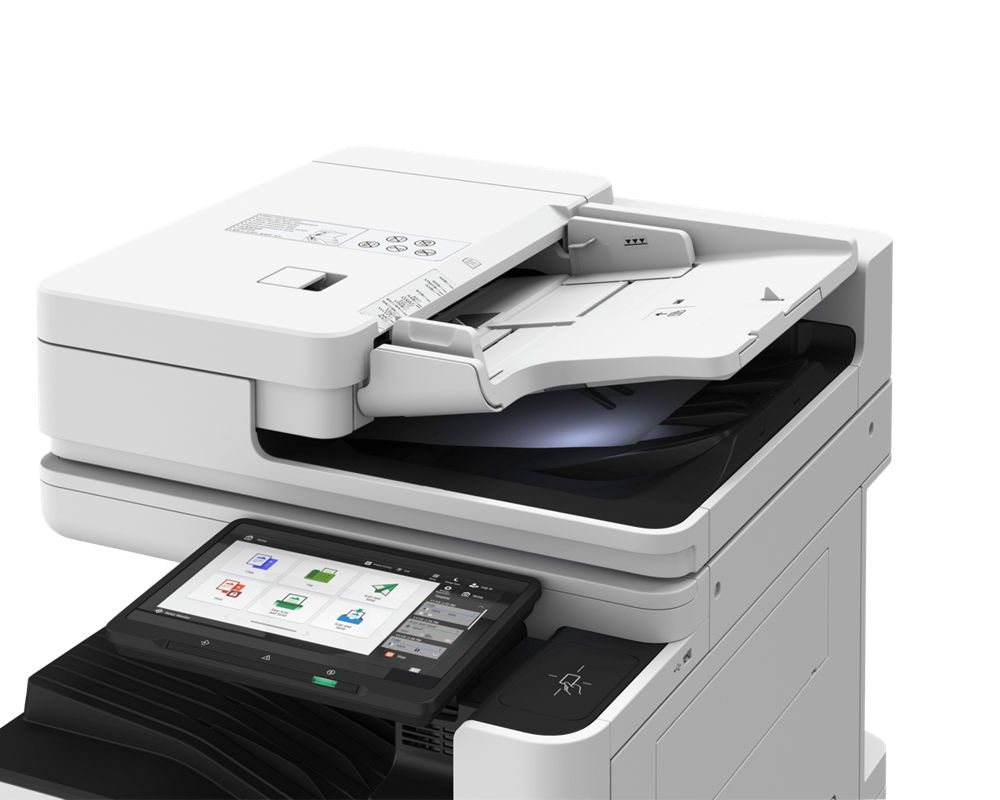
Quick answer: Good law firm document scanning means every scan starts with a sign-in at the device, lands straight in the right client-matter folder or document management workspace, and leaves a record of who sent what, where. Existing equipment may support a useful first phase, but confirm device capability, software, permissions and integration requirements before choosing settings-only changes or a larger project.
This law firm document scanning guide is for managing partners, firm administrators and office managers planning an implementation. Advanced Business Systems is based in Tallahassee and serves North Florida and South Georgia. Use these questions to compare a settings-only improvement with a larger equipment or software project.
What Is the Paper-to-Digital Gap in a Law Firm?
A document-management or practice-management system does not explain how incoming paper reaches the correct workspace. Map that entry point, including client drop-offs, mailed records and signed documents, before changing the equipment.
Map the route your own documents take instead of relying on an industry percentage. A scan may pass through an inbox or temporary folder before it reaches the matter workspace. Each stop needs an owner and an access decision.
Why Unmonitored Law Firm Document Scanning Is a Real Risk
Routine administrative habits can expose client information even when the network has security controls. Here is how those habits turn into problems:
- Misdirected email. Autocomplete picks the wrong contact, and a privileged document leaves the firm in seconds.
- Files outside the matter. A copy in an inbox may not inherit the permissions or automated controls of the DMS. Check the actual retention, access and hold arrangements rather than assuming that the same controls follow every copy.
- No trail. If a client, an insurer or opposing counsel asks who handled a document and when, a shared folder often can’t answer.
- Copies left on the device. Some multifunction printers retain job information on internal storage. Verify the exact device, settings and supported sanitization procedure.
The Florida Bar’s Professional Ethics Committee addressed that last point in Ethics Opinion 10-2, issued in 2010. It says lawyers who use copiers, scanners, printers and fax machines with storage media should identify the risk and adopt policies, keep an inventory of those devices, supervise the people and vendors who handle them, and get meaningful confirmation that a device was sanitized before it leaves. Advisory opinions aren’t binding, and this article isn’t legal advice. Confirm your firm’s ethics and records duties with your own counsel or the Florida Bar.
None of this means the copier is dangerous. It means law firm document scanning deserves the same deliberate setup as your email or your DMS, instead of whatever settings were left behind on install day.
7 Law Firm Document Scanning Best Practices
Use these questions to define an implementation scope and obtain a configuration-specific proposal.
1. Inventory every device that can scan
List every copier, desktop scanner and all-in-one printer, including the ones in attorneys’ home offices. For each one, note where its scans can go and who can change its settings. This is also the kind of inventory Opinion 10-2 describes, so the list does double duty.
2. Require sign-in before anyone scans
Evaluate named-user authentication and approved destinations. Compare supported PIN, badge and identity-provider options, including enrollment, lost credentials and shared-device behavior. Costs and safeguards depend on the device and software; ask for a demonstration before selecting a method.
3. Retire or lock down the shared Scans folder
If you keep a shared drop folder, limit who can open it, set a rule that files move to the matter within one business day, and have someone check that it actually happens. Better still, replace it with personal or matter-specific destinations so nothing waits in a common pile.
4. Make the right destination the easiest button
People take the path of least resistance. If “Scan to Matter” is one tap and “Scan to Email” takes five, behavior changes without a memo. Test pre-built scan profiles against the written process; neither configuration nor a policy is sufficient without staff understanding and review.
5. Make every scan searchable and consistently named
Set searchable PDF as the default, pick one naming convention, and apply it on every device. Searchable, well-named files are easier to find, produce and review, and they’re less likely to be scanned twice because someone couldn’t find the first copy.
6. Keep the audit trail and actually look at it
Ask which user, destination, time and delivery-status fields the proposed system records. Verify access, retention and export options. Assign a reviewer and a risk-appropriate review schedule; do not assume that logs contain document contents or prove that a recipient read a file.
7. Plan for the device’s whole life
Encrypt internal storage, keep firmware current, and decide before the lease is signed how the device’s data will be wiped and documented when it leaves your office. NIST’s media sanitization guidelines (SP 800-88) are the usual reference point. Our article on copier data security at lease end walks through the options.
Can We Scan Straight into Our Document System?
Ask the document-system and capture vendors to demonstrate the exact integration being proposed. Confirm the supported cloud or on-premises edition, device, firmware, licensing, sign-in method and destination permissions in writing. Test naming, completeness, error handling and restricted access before using client files. A connector offered for one cloud edition does not establish support for a different deployment.
Copier or Dedicated Scanner: Which Fits Your Firm?
A shared copier may fit occasional scanning. A dedicated desktop scanner may suit an intake or records desk when sustained scanning would interrupt other work. Compare representative documents, review steps, software and operator workload rather than choosing only by advertised speed.
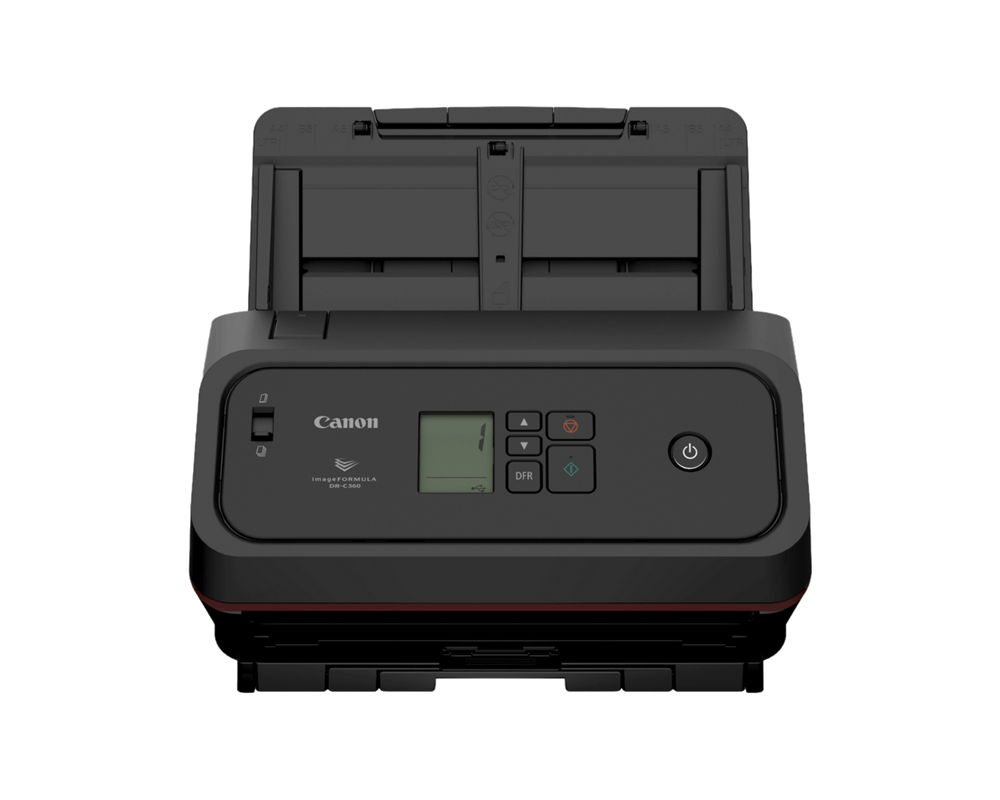
A desktop scanner like Canon’s imageFORMULA DR-C360 sits at a workstation, so the operator can check each image, rescan a bad page and index the batch before it’s released. Our guides to choosing an imageFORMULA scanner and the Canon DR-C360 go deeper on models and features.
One honest caveat: a faster scanner doesn’t fix a filing problem. If scans still land in an unnamed pile, you’ve only made the pile grow faster. Fix the destination first, then decide whether you need more speed.
How Much Does Better Law Firm Document Scanning Cost?
There’s no honest single number, because starting points vary so much. The cheapest improvements are configuration: turning on sign-in, building scan profiles, setting OCR defaults and cleaning up destinations. That’s mostly labor. Costs rise as you add badge readers, print and scan management subscriptions, DMS connectors, dedicated scanners or capture software, each usually priced per device, per user or per month.
Ask for an itemized written proposal separating equipment, software, integration, installation, training and ongoing support. Verify which costs recur, which agreement covers each item, and what happens at renewal or termination. Do not infer service coverage from an equipment lease or a combined invoice.
If you’re partway through a lease, you may not need new equipment at all. Many current devices can simply be reconfigured. Our free copier invoice review can show what your current agreement covers before you change anything. Please redact client names and other privileged details before sending us any document.
Who Is and Is NOT a Good Fit for a Scanning Overhaul?
Usually a good fit
- Firms where scans routinely go to email or a shared folder and then sit there.
- Practices with steady intake paper, such as personal injury, family law, real estate closings and estate planning.
- Firms answering client security questionnaires or outside counsel guidelines that ask how documents are handled.
- Firms that already pay for a DMS but whose staff bypass it at the copier.
Probably NOT worth a big project
- Small offices may need a limited first phase rather than a large deployment. Sensitive records and access requirements still matter even at low volumes.
- Firms about to switch DMS platforms. Build the routing after the move, not before.
- Offices whose copier is near the end of its life. Fix the basics now and design the full workflow into the replacement.
How Should a Firm Get Started?
Start small. Pick one practice group or one intake desk and walk a single document from the moment it arrives to where it ends up, writing down every stop. Fix the worst stop first, which is usually anonymous scan-to-email. Pilot the new buttons for two weeks, collect complaints, adjust, then roll out to the rest of the firm with a short training session.
Measure correct filing, document completeness, unresolved exceptions and staff effort, not just a decrease in scan-to-email volume. A new route needs evidence that permissions and delivery work as intended. Investigate workarounds with staff rather than assuming a single cause.
Whatever you change, write it down in a one-page scanning policy: who may scan, where each type of document goes, how long the shared folder may hold anything, and who reviews the logs. Keep the process current as staff and systems change, and have authorized reviewers decide what may be shared in response to a client questionnaire.
If you’re in Tallahassee, Thomasville or anywhere in North Florida and South Georgia, we’ll come see how paper actually moves through your office and give you a straight answer about what to fix first, including what you can do yourself. Call ABS at (850) 222-2308 or request a free on-site assessment below. Our law firm technology page explains how we work with legal offices.
Request your free on-site assessment
It takes about a minute. Only your name, email and phone are required.
Free, with no obligation. We use your information to arrange your visit, and we never sell, rent or share it with third parties for marketing. Someone from ABS will contact you to confirm the details.
Frequently Asked Questions
Is scan-to-email unsafe for law firms?
Not inherently. Review the approved recipients, authentication, encryption, retention and delivery evidence. Direct filing also requires permission and destination checks; neither route is automatically safe.
Do we need new copiers to scan directly into our DMS?
Often not. Many current MFPs can be reconfigured with sign-in, scan profiles and, where needed, a connector license. Older devices may not support newer connectors, so confirm your exact models first.
What does the Florida Bar say about copiers and scanners?
Florida Bar Ethics Opinion 10-2 (2010) says lawyers using devices with storage media should take reasonable steps to protect client confidentiality, including policies, an inventory, supervision and confirmed sanitization. It is advisory, so confirm your duties with your own counsel or the Florida Bar.
Can ABS help us scan into iManage?
Ask ABS to assess the proposed integration and confirm supported devices, current licensing, responsibilities and service scope in a written proposal before planning around it.
Related Resources from ABS
- Copiers and IT for Tallahassee Law Firms
- Managed Print Services for Law Firms: Efficiency and Security
- Canon imageFORMULA Scanners: Which One Fits Your Document Workflow?
- Canon DR-C360: Upgrade Guide for DR-M160II Owners
- Document Security for Law Firms: Copiers, Printers, and Your Obligations
- Request a Free On-Site Assessment
Sources and verification: Canon product details are from Canon U.S.A.’s imageFORCE C5100 Series and imageFORMULA DR-C360 pages. Ethics guidance is from Florida Bar Ethics Opinion 10-2. Sanitization guidance is from NIST SP 800-88 Rev. 2, Guidelines for Media Sanitization. Integration and licensing requirements must be confirmed with the vendors for the exact deployment before purchase.