
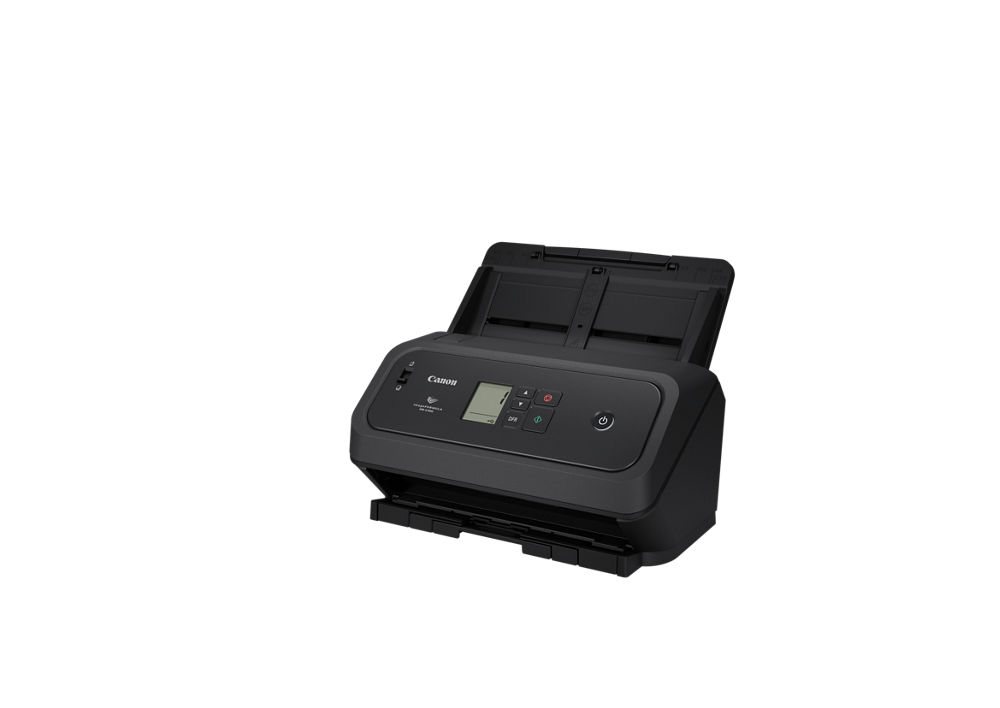
Quick answer: The Canon DR-C350 is a compact desktop document scanner that Canon rates at up to 50 pages (100 images) per minute, with a 100-sheet feeder, a USB Type-C connection and passport and ID-card scanning. It suits a front desk or one person who scans stacks of paper every day. It is not a standalone network scanner. Compare the task with your existing copier before adding another device; page count alone does not decide the fit.
This guide helps office administrators and records staff compare a desktop scanner with existing equipment. ABS is a Tallahassee-based Canon dealer serving North Florida and South Georgia.
What Is the Canon DR-C350?
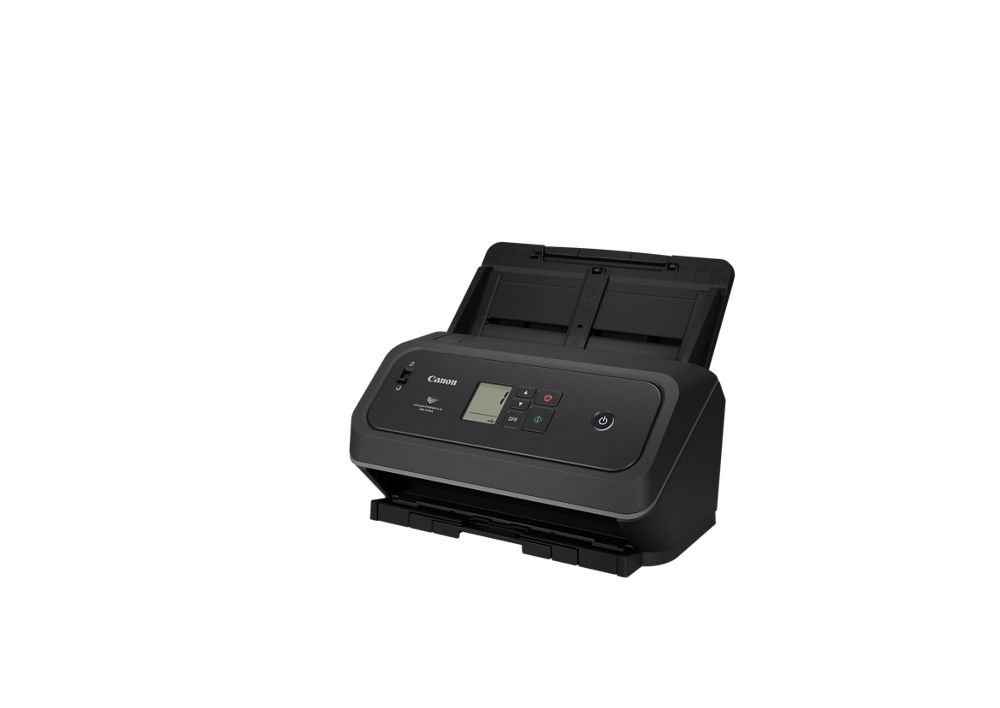
Canon U.S.A. announced the imageFORMULA DR-C350 and its slower sibling, the DR-C340, in November 2025. Canon calls the pair the narrowest scanners in imageFORMULA history at 11.2 inches wide, about 30% narrower than the models they follow. Here is what Canon’s own product brochure lists for the Canon DR-C350:
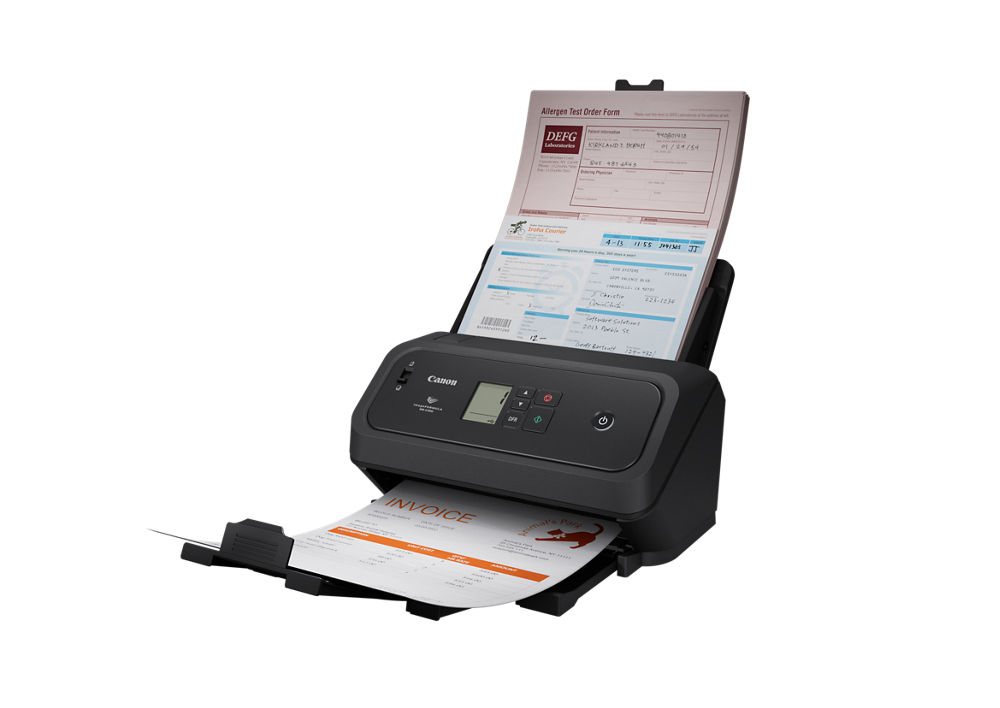
- Speed: up to 50 pages per minute one-sided and 100 images per minute two-sided, in color, grayscale or black-and-white (letter-size pages at 200 dpi).
- Feeder: holds up to 100 sheets.
- Paper: 2.0 to 8.5 inches wide and 2.1 to 14 inches long, plus a long-document mode up to 240 inches; paper weights from 7.2 to 110 lb. bond.
- Cards and passports: plastic and embossed cards, and virtually any passport without a carrier sheet. Depending on its condition, a passport may require the Passport Carrier Sheet to prevent damage. Follow Canon’s current supported-media and loading instructions.
- Connection: USB 2.0 Type-C.
- Suggested daily volume: up to 8,000 scans.
- Bundled software: ISIS/TWAIN driver, CaptureOnTouch and ReadIRIS PDF.
- Warranty: three-year limited warranty, subject to its terms, exclusions and repair or replacement provisions. Confirm any extension separately; do not assume advance exchange is guaranteed.
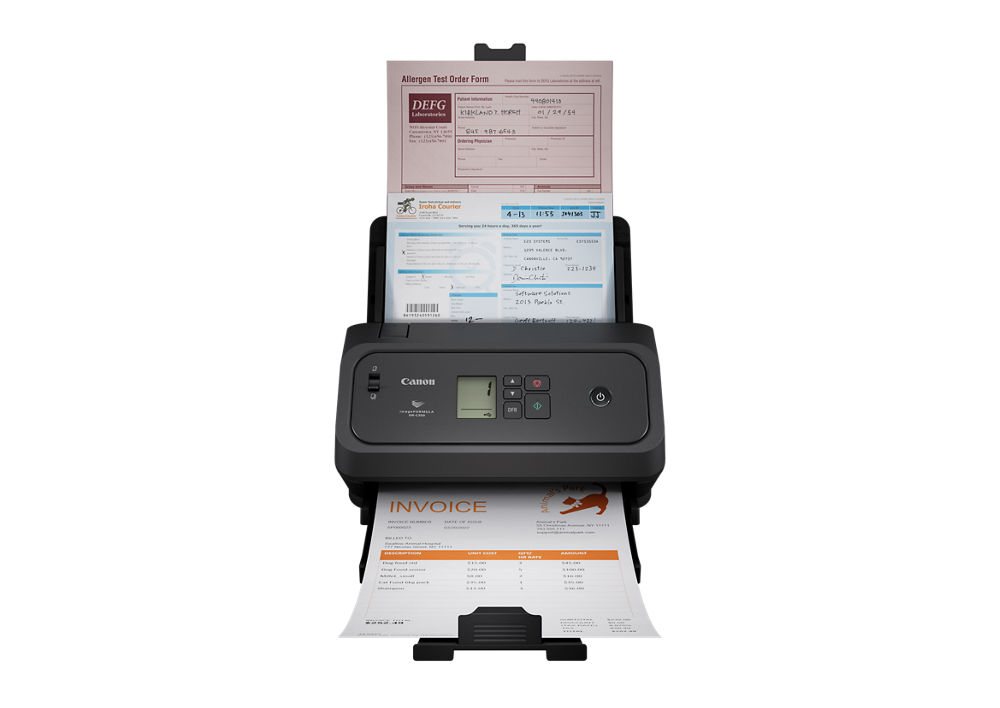
Canon’s suggested daily volume is a calculation based on the scanner’s speed and an assumed amount of daily use, not a hard limit. Treat it as a guide to how hard the machine was designed to work, and size it against your busiest realistic day.
What Can the Canon DR-C350 Scan, and What Can’t It?
Canon pitches this scanner for mixed batches: invoices, contracts, customer records, forms, ID cards, receipts and passports. The brochure lists image tools such as automatic color detection, automatic page-size detection, deskew, blank-page skipping, text enhancement, text-orientation recognition and bleed-through prevention. Double-feed detection watches for two sheets pulled through together, and a one-touch button lets the operator resume scanning when it trips.
What it can’t do on its own: books, bound records, fragile originals, or slips smaller than Canon’s minimum of 2.0 by 2.1 inches. For those, Canon sells optional flatbed units (Flatbed Scanner Unit 102 and 202) that pair with the scanner, plus carrier sheets in letter, legal and passport sizes. Pull staples and heavy clips before you load a batch; any sheet-fed scanner will thank you.
Canon DR-C350 vs. DR-C340 vs. DR-C360: Which One Fits?
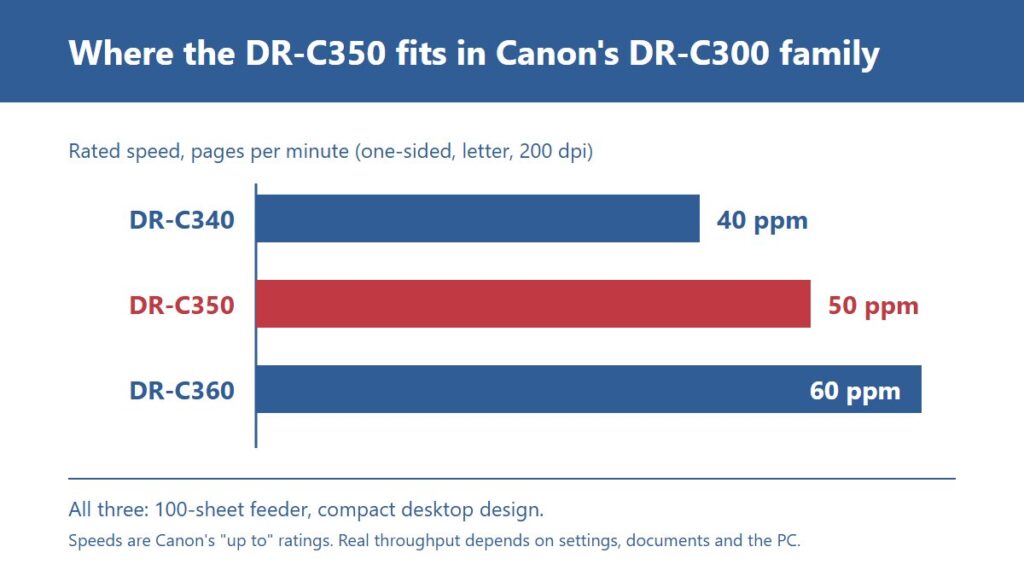
All three belong to Canon’s DR-C300 family of compact desktop scanners, and all three use a 100-sheet feeder. The main differences are rated speed and how much daily work each is built for:
- DR-C340: up to 40 pages per minute, with the same 11.2-inch width as the DR-C350.
- DR-C350: up to 50 pages per minute and a suggested daily volume of up to 8,000 scans.
- DR-C360: up to 60 pages per minute; Canon lists a suggested daily volume of up to 13,000 scans. Our Canon DR-C360 guide covers it in detail, including its role as the successor to the DR-M160II.
A speed difference matters only in the complete task. Compare loading, scanning, image review and filing with representative documents rather than assuming that every user benefits from a higher peak rate.
Replacing an older DR-C240 or DR-C230? Canon says an optional emulation tool is available for systems built around those legacy models, which can make the swap easier. Confirm with whoever supports your document software before you change the hardware.
Do You Need a Dedicated Scanner, or Is Your Copier Enough?
First test the copier you already have. A separate scanner may not be necessary when existing equipment handles the required media, image quality, destinations and review tasks without interrupting other work.
A dedicated scanner earns its place when scanning is part of someone’s job; when batches mix cards, receipts and long pages; when someone must check image quality at the desk before releasing a batch; or when one person’s 300-page job ties up the copier everyone else needs. Our guide to Canon imageFORMULA scanners walks through that decision in more depth, and our copiers and MFPs page covers the copier side.
USB Only: What That Means Day to Day
The Canon DR-C350 plugs into one computer through USB Type-C. The USB connection requires a host computer; it does not determine where the software stores, uploads or backs up the images. Review the whole data path and access controls. If several people need to scan straight to email or network folders without a PC in the middle, ask about Canon’s network-capable imageFORMULA models instead. Our article on the Florida scanner contract shows how Canon’s lineup breaks into desktop, network, departmental and production classes.
Check the computer before you order. Check Canon’s current driver requirements and confirm that the chosen operating system also has an appropriate security-update and support arrangement. A compatible driver does not establish ongoing operating-system security support. Someone also has to install the driver and software, keep them updated, and make sure scans land in the right place. That’s routine work for our managed IT team. For offices running several scanners, Canon includes its DR Scanner Management tool to help with configuration, maintenance and monitoring from one place.
What Software Comes With the Canon DR-C350?
Canon lists CaptureOnTouch Pro, the DR Scanner Management Tool, ISIS/TWAIN drivers and ReadIRIS PDF. Confirm the current package for the quoted model and operating system. Third-party applications and cloud destinations require compatible versions, settings and applicable subscriptions; demonstrate the actual workflow before purchase.
What’s not in the box: a document management system, a records retention plan, or an automated indexing workflow. Canon offers software in those areas, and ABS can help you evaluate whether any of it fits your office. Often the simplest win is a clear naming convention and folder structure. Our article on workflow automation explains what to automate first.
Setting Up the Canon DR-C350: What to Decide First
The scanner is the easy part. Most of the value comes from a few decisions made before the box is opened:
- Which desk and which PC. Put it where the paper arrives, next to a computer that stays put and gets updates.
- Your three or four everyday jobs. For example, “insurance card, both sides, to the patient folder” or “signed engagement letter to the client file.” Build each one as a one-touch job in CaptureOnTouch.
- Resolution and color. Higher resolution and color make bigger files and slower scans. Use them where they matter, such as photos or IDs, and keep plain text pages lean.
- File names and folders. Agree on a naming pattern so anyone can find a file later.
- A test batch. Use blank or synthetic examples that represent supported paper types. Check the loading instructions before testing unusual or damaged originals; do not use confidential client records in an informal demonstration.
Train the operator on supported loading methods, double-feed alerts and cleaning instructions. Have the person demonstrate those tasks and document who handles maintenance and exceptions; no fixed training time guarantees readiness.
How Much Does the Canon DR-C350 Cost?
Canon’s announcement doesn’t publish a price, and we won’t make one up. What we can tell you is what drives the total: the scanner itself, any optional flatbed unit, replacement roller parts (Canon lists an Exchange Roller Kit and a Roller Refill), carrier sheets, an eCarePAK extension if you want coverage past the standard warranty, and the labor to set up software and scan destinations.
Request an itemized quote for hardware, accessories, software, setup and support. Check roller-replacement guidance and warranty exclusions; wear depends on use and media, not a universal second-year schedule.
Florida public-sector buyers should verify the current DMS alternate-contract record, entity eligibility, ordering instructions, dealer participation and the exact model/configuration before relying on a purchasing route. The NASPO ValuePoint portfolio and ABS state-agencies page are starting points, not proof that a particular quote or DR-C350 configuration is covered. Florida arrangements should not be assumed to apply to Georgia buyers.
Problems and Risks to Know Before You Buy
For medical offices, review the full device, workstation, software, destination and support arrangement with qualified privacy and security advisers. A scanner purchase does not establish HIPAA compliance. Law firms should confirm ethics and records duties with their own counsel or the Florida Bar. CPA firms and other businesses can start with the IRS guidance on how long to keep records, and Florida public agencies with the state’s general records schedules. See our pages for medical offices and law firms.
When Another Scanning Option May Fit Better
Not a good fit
- Low-volume offices should first test whether existing equipment meets the media, image-quality and review requirements.
- Teams that need shared scanning without a PC. Look at a network scanner.
- Large backfile conversion projects. A production scanner or a scanning project may make more sense.
- Books and fragile originals, unless you add the flatbed unit.
Canon isn’t the only good choice in this class, either. If your office already runs another brand’s scanners with software built around them, staying consistent can matter more than any spec difference. We’ll tell you if that’s the case.
See It Before You Decide
Want to know whether the Canon DR-C350 is right for your desk, or whether your copier already covers it? Bring blank or synthetic samples representing your normal documents, and ask for a supported-media demonstration. Agree on handling before providing any sensitive originals. ABS serves Tallahassee, Thomasville and the rest of North Florida and South Georgia. Call (850) 222-2308 or request a free on-site assessment.
Request your free on-site assessment
It takes about a minute. Only your name, email and phone are required.
Free, with no obligation. We use your information to arrange your visit, and we never sell, rent or share it with third parties for marketing. Someone from ABS will contact you to confirm the details.
Frequently Asked Questions
Does the DR-C350 connect to a network or Wi-Fi?
No. It connects to one computer through USB 2.0 Type-C. If several people need to scan straight to email or folders without a PC, ask about Canon’s network-capable imageFORMULA scanners.
Can the DR-C350 scan passports and ID cards?
Yes. Canon says it handles plastic and embossed cards and virtually any passport without a carrier sheet. Canon says the Passport Carrier Sheet may be required depending on the passport’s condition to prevent damage. Follow the current loading instructions before feeding any passport.
Related Resources from ABS
- Canon DR-C360: Upgrade Guide for DR-M160II Scanner Owners
- Canon’s imageFORMULA Scanners: Which One Fits Your Document Workflow?
- Buying Document Scanners on the Florida NASPO Contract
- Workflow Automation for Office Document Flow
- Copiers and IT for Medical Offices
- Managed IT and Network Services
Sources and verification: Specifications come from Canon U.S.A.’s DR-C350 product brochure and its DR-C350 and DR-C340 announcement; drivers and manuals are on Canon’s DR-C350 support page. DR-C360 figures come from Canon’s DR-C360 materials, summarized in our DR-C360 guide. For records retention, see the IRS page How long should I keep records? and the Florida Department of State General Records Schedules. Specifications checked October 2026.