
Quick answer: medical front desk automation works best on predictable, repeatable tasks: reminders, pre-visit forms, insurance card capture, fax routing, phone menus and online payments. It may reduce repetitive work when the integration and exception handling are tested. It does not replace staff or fix a broken process, and it shouldn’t handle clinical questions, upset patients or billing disputes. Any vendor that handles patient data generally needs a business associate agreement.
This guide is for physician-owners and practice managers in Tallahassee, Thomasville and across North Florida and South Georgia who are running the front desk with fewer people than they’d like. Advanced Business Systems (ABS) is a family-owned office technology company in Tallahassee, founded in 1984. We support medical offices with copiers and scanners, managed IT, managed print and business phone systems, so we see the front desk from the equipment side every day. Here’s what medical front desk automation can and can’t do for a practice your size.

What Can Medical Front Desk Automation Take Off Your Staff’s Plate?
The best candidates are tasks that happen many times a day, follow the same steps every time and need little judgment. In most independent practices, that list looks like this:
- Appointment reminders and confirmations by text, email or automated call, with confirmed delivery and exception handling; schedule updates depend on integration.
- Pre-visit intake forms that patients complete at home, with a verified import process and staff review before information is accepted into the chart.
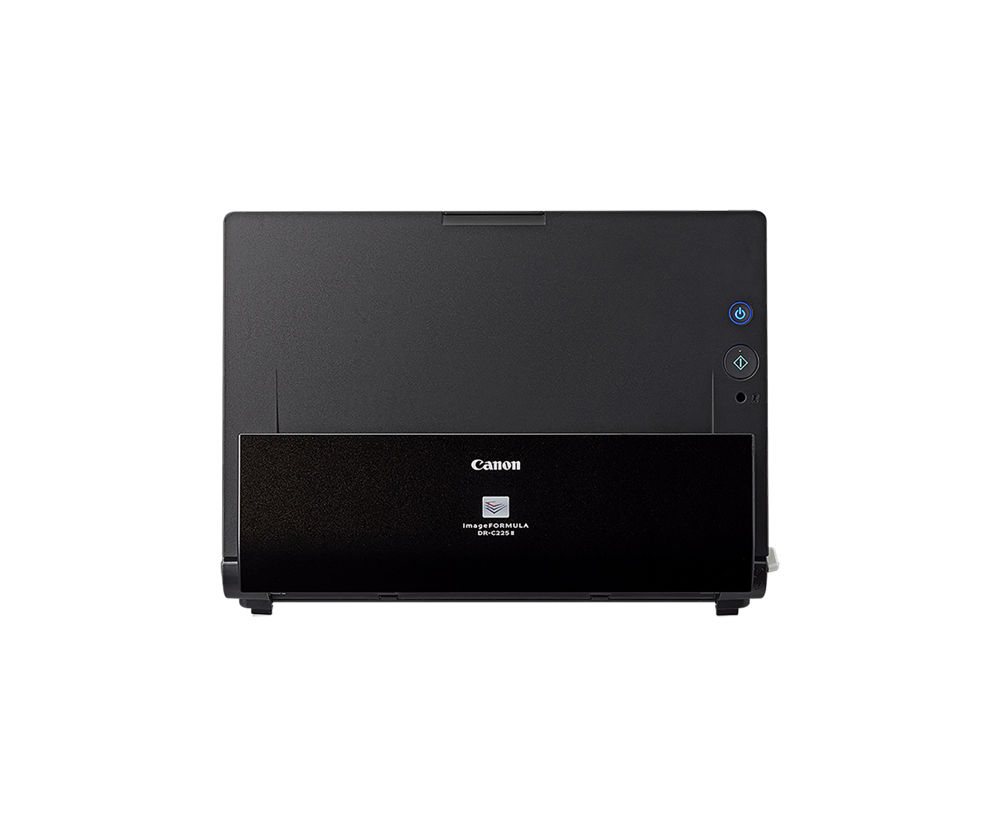
- Insurance card capture at check-in with a desk scanner that sends both sides to the right place.
- Eligibility checks that your practice management system or clearinghouse runs before the visit, with staff reviewing exceptions.
- Fax routing, where incoming faxes arrive in a shared digital queue instead of a paper tray.
- Phone menus and call routing that send refill, billing and scheduling calls to the right person or queue.
- Online bill pay and paperless statements, which cut mailing work and calls about balances.
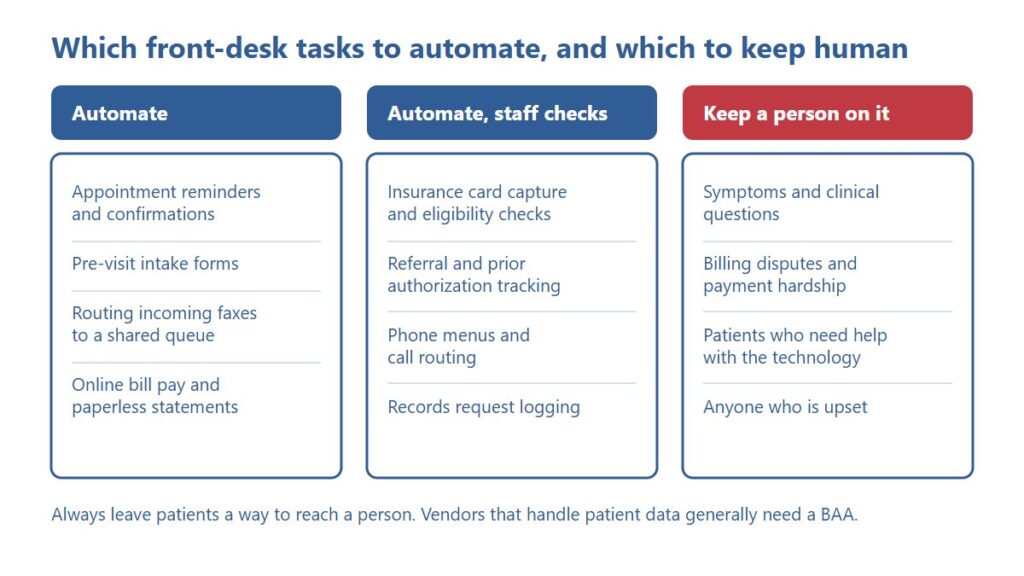
Notice what’s not on the list: anything clinical, anything emotional and anything that needs a judgment call. The chart below sorts common front-desk tasks into three groups. Use the chart to choose a testable first task, starting with tools you already own.
Why Start With the Phones?
Start with phones if your interruption tally identifies calls as a major bottleneck. Every call that could have gone somewhere else pulls a person away from the patient standing at the window. A well-built phone menu routes refill requests, billing questions and scheduling to the right person or voicemail box.
Keep the menu short. Try three or four clearly worded choices and an option to reach a person, then test with patients who have different language and accessibility needs. Review your call reports after a month: if most calls land in one queue, staff that queue first. Our business phone systems page explains what modern cloud phone systems can do for a small office.
Some practices are testing AI tools that answer calls. Be careful here. Keep them away from symptoms and clinical advice, test them with made-up scenarios before real patients hear them, confirm the vendor will sign a business associate agreement, and always give callers a path to a person. Our article on what doctors should consider before using AI covers the bigger questions.
How Do You Speed Up Paper Intake and Insurance Cards?
Put the scanner where the paper is. A compatible desktop scanner at check-in can capture paperwork and cards close to the patient. Verify card handling, supported drivers, patient matching and the EHR import method; direct-to-EHR filing is not automatic just because a scanner can create a PDF. That beats walking every card to the copier in the back, which is where pages get mixed up or left behind.
Set up one-touch destinations so nobody has to think about where a scan goes: Intake, Insurance, Referral, Records. Confirm with your EHR vendor which scanners and import methods it supports. Our guide to Canon imageFORMULA scanners compares desktop models by daily volume and use.
Check the patient portal already offered by your EHR before adding a separate document portal. Ask which fields transfer, which require staff review, how duplicate records are prevented and how patients without digital access receive help. A separate portal needs its own access, retention, integration and vendor review; do not assume that a Canon campaign example is included in an ABS proposal.
What About Faxes, Referrals and Prior Authorizations?
For medical front desk automation, a useful fax pilot has a named owner for every incoming item, a due time and an escalation path. A document arriving in a digital queue is not proof that a referral was accepted, a clinician reviewed it or a payer approved a request.
Technology can’t change payer rules, but it can cut the shuffling around them. Cloud fax turns incoming referrals and payer responses into PDFs in a shared queue, with role-based access for authorized staff covering that work. Use the task or referral tracking in your practice management system rather than a sticky note or a private spreadsheet, so the status survives when the person who started it is out sick. Our guide to cloud fax explains the switch.
What Should Medical Front Desk Automation NOT Do?
This is the part vendors tend to skip. Some front-desk work should stay with a person, even when software could technically do it:
- Symptoms and clinical questions. A bot or phone menu should never decide whether something is urgent. Route those calls to clinical staff.
- Billing disputes and payment hardship. An automated reminder is fine; a dispute or a patient who can’t pay needs a conversation.
- Identity exceptions. When a name, birth date or insurance card doesn’t match, a person should sort it out before anything is merged or filed.
- Patients who need help. Some patients can’t or won’t use a portal, kiosk or text link. Keep a human path that’s just as good.
- A broken process. Automating a confusing workflow just makes the confusion faster. Fix the steps first.
Watch what your website forms and patient tools collect and where that data goes. HHS has issued guidance on tracking technologies such as analytics and advertising code on health care websites, and parts of it have been challenged in court. Ask your web developer what’s running on your intake pages, and confirm your obligations with your own counsel.
How Much Does Medical Front Desk Automation Cost?
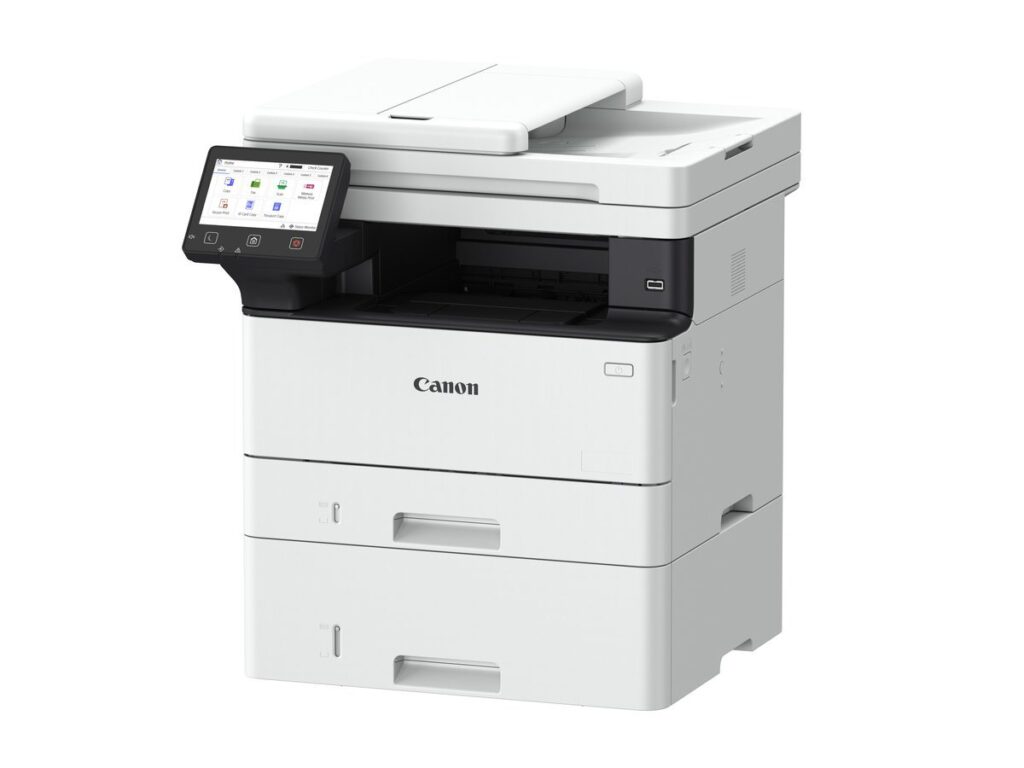
It depends heavily on what you already own, so we won’t quote a number here. Many EHR and practice management systems include reminders, portals and online forms; many phone systems include menus and call queues; some multifunction printers support scan-to-folder or compatible fax workflows; model, licensing and service requirements vary. The first step is an inventory of features you’re paying for but not using.
Where new costs do appear, they tend to be monthly subscriptions (often priced per provider or per user), one-time setup and integration work, a desk scanner or two, and training time. When you evaluate anything new, ask for a written, itemized proposal that separates software, hardware, setup and support. Then measure before and after: calls per day, minutes per check-in and faxes waiting at the end of the day.
How Do You Pick the First Task to Automate?
- Track one week. Have front-desk staff tally interruptions: calls by type, faxes, walk-up questions and rework.
- Pick high volume, low judgment. The best first target happens dozens of times a day and follows the same steps.
- Check what you already own. Ask your EHR, phone and copier vendors what’s included before buying anything.
- Pilot for 30 days. Start with one desk, one provider or one task.
- Measure and decide. Keep it, adjust it or drop it based on the numbers and on what staff and patients say.
With medical front desk automation, one change at a time is slower on paper but faster in practice. Staff learn one new habit, problems are easy to trace, and you’ll know which change actually helped.
What Privacy and Security Steps Come First?
- Assess vendor roles and agreements. A vendor acting as a business associate generally needs a BAA. Evaluate the actual handling of protected health information and applicable exceptions with counsel, including reminder, fax, phone and portal services.
- Turn on multifactor authentication for portals, admin accounts and remote access. CISA’s guidance on MFA is a good plain-English starting point.
- Limit access by role, so the front desk sees what it needs and no more.
- Test with made-up data, never with real patient records.
- Configure equipment to support HIPAA requirements, such as secure scan destinations and encrypted storage. The practice remains responsible for its own compliance.
Our article on what HIPAA requires from your technology goes deeper on access controls and encryption, and our managed IT team can help set these controls up and keep them maintained.
If your Tallahassee, Thomasville or South Georgia practice is stretched thin, ABS can look at your front desk, phones and scanning setup and tell you honestly which changes are worth making first, including configuration changes as well as new purchases. Call (850) 222-2308 or request a free on-site assessment. We’ll start with what you already own.
Request your free on-site assessment
It takes about a minute. Only your name, email and phone are required.
Free, with no obligation. We use your information to arrange your visit, and we never sell, rent or share it with third parties for marketing. Someone from ABS will contact you to confirm the details.
Frequently Asked Questions
What is medical front desk automation?
It’s using software and equipment to handle routine front-desk tasks, such as reminders, intake forms, insurance card scanning, fax routing and phone menus, so staff spend less time on repetitive work and more time with patients.
Will automation let us hire fewer people?
Do not build a staffing reduction into the business case before a pilot demonstrates the actual workload, rework and support needs. Plan to keep enough people for patients who need a person.
Do we need a business associate agreement with automation vendors?
Generally, yes, if the vendor creates, receives, stores or transmits patient information for your practice. Ask before you sign up, and confirm your obligations with your own compliance adviser or counsel.
What is the cheapest first step?
Turn on the features you already pay for. Many EHRs include reminders and portals, many phone systems include menus and queues, and many copiers can scan to folders and work with cloud fax.
Related Resources from ABS
- Copiers and IT for Medical Offices
- Business Phone Systems
- Cloud Fax: 5 Smart Reasons to Ditch the Fax Machine
- Canon imageFORMULA Scanners: Which One Fits Your Workflow?
- Could Local AI Have a Place in a Medical Practice?
- Business Continuity Plan: 5 Essential Steps
Sources and verification: HHS business associate guidance supports vendor-role review. HHS appointment reminder guidance explains that reminders are treatment communications; it does not establish every texting or automated-calling permission. Confirm privacy preferences and other applicable communication rules before launch. Canon’s DR-C225 II product information supports the compact duplex-scanner example, not EHR compatibility or service availability. This article is general information, not legal or compliance advice. Pilot periods, task categories and measurement suggestions are editorial operating recommendations, not guaranteed results.