
Quick answer: medical office security for a small practice comes down to a short list of habits done consistently: unique logins with multifactor authentication, updated and encrypted devices, printers and copiers that hold and wipe patient data, backups you have actually tested, and business associate agreements with vendors that touch patient information. No single product makes a practice secure, and buying one doesn’t replace your own risk analysis and policies.
This checklist is for practice managers and physician-owners at small medical offices in Tallahassee, Thomasville and across North Florida and South Georgia. Advanced Business Systems (ABS), a family-owned Tallahassee company since 1984, provides managed IT, managed print, phone systems and Canon copiers to medical offices. We’ve written deeper guides on several pieces of medical office security. This article ties them together into one practical, day-to-day list, with links where you want more detail.
Where Should You Start?
Start with a risk analysis. For HIPAA-regulated practices, this must assess threats and vulnerabilities to electronic protected health information across the practice. A system inventory is the starting point, not the finished analysis: assess likelihood and impact, existing safeguards and remaining risks, then document priorities and responsible owners.
You don’t have to start from scratch. The free Security Risk Assessment Tool from the Office of the National Coordinator for Health IT and the HHS Office for Civil Rights is built for small and medium providers. NIST Special Publication 800-66 Revision 2 maps the Security Rule to practical steps, and the HHS 405(d) program’s Health Industry Cybersecurity Practices include guidance sized for small organizations. Canon’s campaign also points practices toward the NIST Cybersecurity Framework guide for the health care sector.
Review the analysis periodically on a documented schedule appropriate to your risks and whenever something big changes, such as a new EHR, a new office or a new vendor. For what the Security Rule expects from your technology, see our guide to HIPAA IT requirements for medical practices.
Medical Office Security Checklist, Part 1: People
Include staff access and reporting in your medical office security routine:
- One login per person. No shared front-desk login for the EHR, email or computers. Shared accounts weaken individual accountability.
- Multifactor authentication (MFA) on email, the EHR, remote access and every admin account. Prefer phishing-resistant methods where supported; MFA reduces risk but does not prevent every account compromise.
- Least access. Front-desk staff, billing and clinical staff should each see what their job needs, not everything.
- Fast offboarding. When someone leaves, remove their access right away, including email, EHR, remote access, the copier and any shared passwords they knew.
- An easy way to report. Staff should know exactly who to tell about a strange email or call, and that reporting a mistake won’t get them in trouble.
- Short, regular training. A yearly session plus quick refreshers works better than one long lecture.
For the details, see our guides to phishing-resistant MFA and email security for small businesses.
Medical Office Security Checklist, Part 2: Devices and Network
- A documented update process on computers, the firewall, Wi-Fi equipment and copiers. Prioritize actively exploited vulnerabilities; do not wait for a monthly window when urgent fixes are needed.
- Encrypted drives on every laptop and workstation that stores or caches patient data, with protected encryption keys; assess any loss under the applicable breach rules rather than assuming encryption settles every incident.
- Endpoint protection on every computer, ideally with monitoring. Ask whether yours is actively monitored or just installed.
- Screen locks and privacy screens at check-in, where patients can see monitors.
- A separate guest Wi-Fi network so the waiting room never shares a network with your EHR workstations. See our guest Wi-Fi guide.
- Managed phones and tablets if staff use them for patient messages or photos, with a passcode and remote wipe.
Printers, Copiers and Fax: The Medical Office Security Gap Most Practices Miss
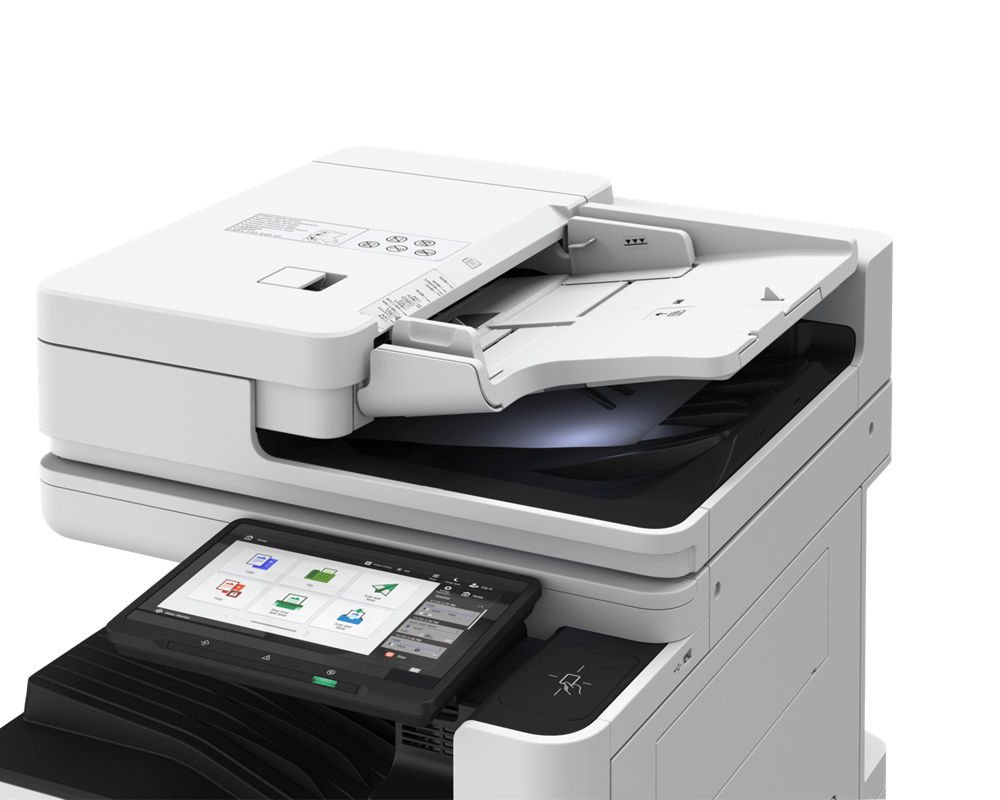
A multifunction printer is a networked computer that handles more patient paperwork than almost anything else in the building. It can store images of what it copies, scans and faxes, and it often ships with a default admin password. Here’s the short version of what to check:
- Secure print release. Jobs wait until the person who sent them signs in at the device with a badge or PIN, to reduce unattended output; staff must still collect and protect released pages.
- Storage protection and sanitization verified for the exact model. Encryption, overwrite and secure erase differ by storage type and configuration.
- Admin password changed from the default, with the web settings page limited to the people who need it.
- Firmware kept current, like any other computer on your network.
- Limited scan destinations, so staff can scan to approved folders and addresses rather than any email address they type.
- Fax discipline: confirmed numbers, a cover sheet, and incoming faxes in a digital queue instead of an open tray.
- A documented wipe or storage removal before any device leaves your office at lease end.
Canon describes startup verification, storage encryption and other controls on its imageFORCE platform. Features, options and defaults vary by model and configuration. Ask for a demonstration and a written configuration record for the device being quoted; a product family’s feature list is not proof that every control is enabled on your machine.
This section is deliberately short because we’ve covered it in depth elsewhere. See our printer and copier HIPAA guide, our article on secure printing for medical offices, and what happens to your copier’s hard drive when the lease ends. For any brand, verify the exact model’s supported controls and end-of-lease procedure.
Does Paper Still Count?
Yes. Plenty of privacy problems in medical offices never touch a computer. Use locked shred bins rather than open recycling. Keep the check-in counter clear of schedules, lab slips and forms. Lock the records room and any cabinet that holds charts or signed consents. Double-check names and addresses on outgoing mail, and have a set place for incoming mail that isn’t visible from the waiting room. Assign responsibility for these physical safeguards as part of medical office security.
Backups: Can You Restore, Not Just “Do You Back Up?”
Do not assume a cloud-hosted EHR backs up everything you need. Confirm its contract and recovery arrangements, then account for scanned documents waiting in shared folders, email, accounting files, spreadsheets on the office manager’s desktop, and phone and network settings. Ask your EHR vendor in writing what it backs up, how long it keeps it and how quickly you could get your data back.
- Keep more than one copy, with at least one offsite or in the cloud and protected from deletion or encryption by ransomware.
- Schedule and document restore tests. Use a risk-based schedule; quarterly testing can be a practical starting point, not a universal HIPAA interval. Record what was restored, how long it took and any gaps.
- Protect the backup system with its own MFA-protected admin account.
- Know your recovery targets: how much data you can afford to lose and how long you can be down. Write both down and share them with your IT provider.
Logs are a related question. Our article on HIPAA network log retention explains what practices actually need to keep and for how long.
Vendors and Business Associate Agreements
Vendor access belongs in your medical office security review. Map the systems and information each vendor can reach; do not assume that an outsourced service removes the practice’s responsibilities.
Make a list of every vendor that creates, receives, stores or transmits patient information for you. A business associate agreement (BAA) is generally required for each. Common examples include the EHR and practice management vendor, your IT provider, cloud fax and phone services that handle patient data, the billing company or clearinghouse, the shredding company, an answering service, any AI tool that sees patient data, and your copier dealer if its service work involves access to stored patient information. Confirm the applicable BAA and responsibilities with each provider before work begins.
A BAA is a contract, not a security control. Ask each vendor how it protects your data, whether it uses MFA and encryption, how fast it will tell you about an incident, and what happens to your data when the contract ends. Keep admin logins for your own systems in your control, too; our IT vendor account control checklist shows how. Have your counsel review BAA terms.
What’s Your Plan When Something Goes Wrong?
Write down, on one page, who to call and what to do: your IT provider, your cyber insurer, and your attorney. Decide how you’ll keep seeing patients if systems are down, which usually means printed downtime forms and a printed schedule for the next day. Federal breach notification rules, and state laws in Florida and Georgia, may require notices within set deadlines, so involve counsel early. Then practice the plan once a year with a short tabletop exercise. Our guide to testing an incident response plan walks through it.
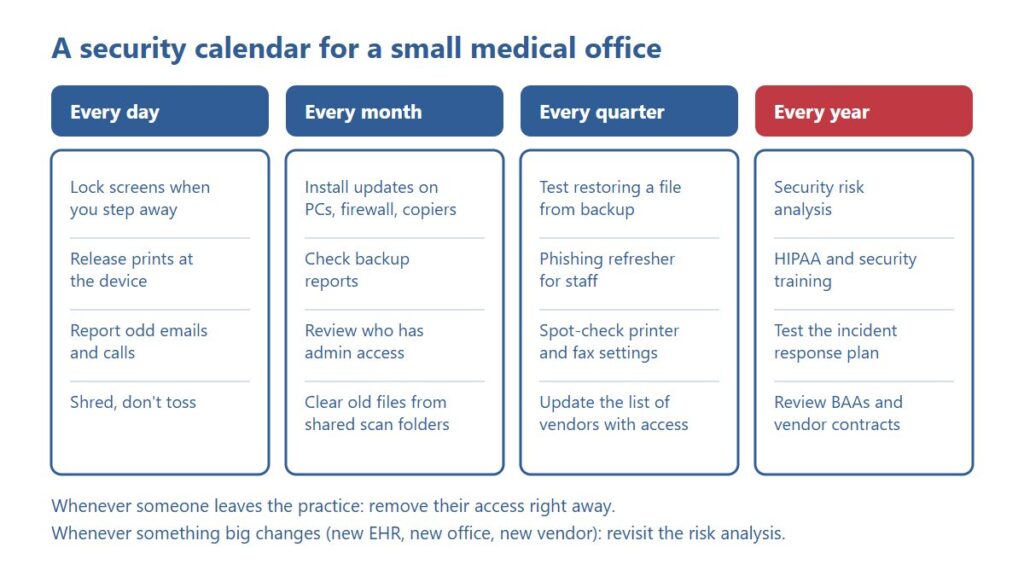
A Medical Office Security Calendar
Checklists fail when nobody knows when to do each item. Here’s a simple calendar that spreads medical office security across the year so it never becomes one giant project:
If you’d like a second set of eyes, ABS can walk your Tallahassee, Thomasville or South Georgia office and check this list with you: logins, devices, copiers, backups and vendors. Call (850) 222-2308 or request a free on-site assessment. You’ll get a plain-English list of what’s in good shape and what isn’t.
Request your free on-site assessment
It takes about a minute. Only your name, email and phone are required.
Free, with no obligation. We use your information to arrange your visit, and we never sell, rent or share it with third parties for marketing. Someone from ABS will contact you to confirm the details.
Frequently Asked Questions
What is the most important medical office security step?
If you do only one thing this month, turn on multifactor authentication for email, the EHR and remote access. Then schedule your risk analysis, which tells you what to fix next.
How often should a small practice do a risk analysis?
HIPAA requires an accurate and thorough risk analysis and periodic review. Set a documented review schedule based on your risks and reassess after meaningful changes such as a new EHR, office or vendor; this article does not prescribe a universal annual HIPAA deadline.
Are copiers really a privacy risk?
They can be. Many store images of scanned, copied and faxed pages, and they sit on your network. Turn on encryption and secure release, change the default admin password, keep firmware current and wipe the device before it leaves.
Does a business associate agreement make a vendor secure?
No. A BAA is a contract that sets responsibilities; it doesn’t protect data by itself. Ask each vendor how it secures your information and how fast it will report an incident, and have counsel review the terms.
Related Resources from ABS
- Printer and Copier HIPAA Safeguards for Medical Offices
- IT Support for Medical Practices: What HIPAA Requires from Your Technology
- Does HIPAA Require Six Years of Network Logs?
- Secure Printing for Tallahassee Law Firms and Medical Offices
- Ransomware Protection for Small Business: What Actually Works
- Managed IT and Network Services
Sources and verification: HHS Security Rule summary, HHS risk analysis guidance and HHS business associate guidance. Risk analysis resources: the ONC and OCR Security Risk Assessment Tool, NIST SP 800-66 Rev. 2, and the HHS 405(d) Health Industry Cybersecurity Practices. MFA and ransomware guidance: CISA on MFA and CISA StopRansomware. Canon security features are from Canon U.S.A.’s imageFORCE page. This article is general information, not legal advice; confirm your obligations with your own counsel or compliance adviser.