
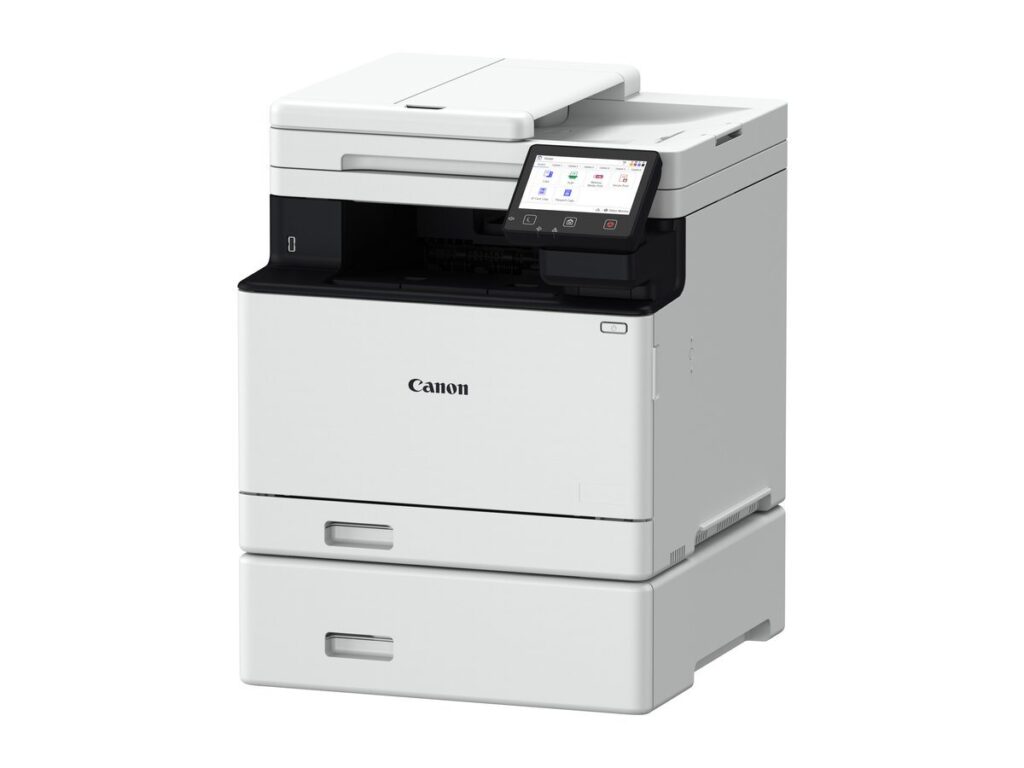
Quick answer: a better medical practice workflow usually means fewer places for paper to land, not more software. Collect intake forms before the visit, route faxes and referrals into a digital queue, capture other records once and verify the correct patient and document type before filing in the EHR, and match desktop and shared printers to each room. Technology won’t fix an unclear process, and many small practices already own the tools they need inside their EHR or copier.
This guide is for practice administrators, office managers and physician-owners at independent practices in Tallahassee, Thomasville and across North Florida and South Georgia. Advanced Business Systems (ABS) is a family-owned office technology company in Tallahassee, in business since 1984. We sell and service Canon copiers and printers, along with Kyocera, Ricoh and Toshiba, and we provide managed print, managed IT and phone systems for medical offices. Below, we’ll walk through each part of a medical practice workflow and tell you where technology helps and where it doesn’t.
Where Does Paper Come From in a Medical Office?
Before changing anything, list every way paper enters the building. In most practices, it’s the same handful of sources:
- Intake and consent forms filled out on a clipboard in the waiting room.
- Insurance cards and photo IDs when required by the practice’s documented identification and insurance procedures.
- Referrals, prior authorizations and orders, many of which still arrive by fax.
- Outside records, lab results and imaging reports from other providers.
- Mail: explanation of benefits statements, checks, vendor invoices and letters.
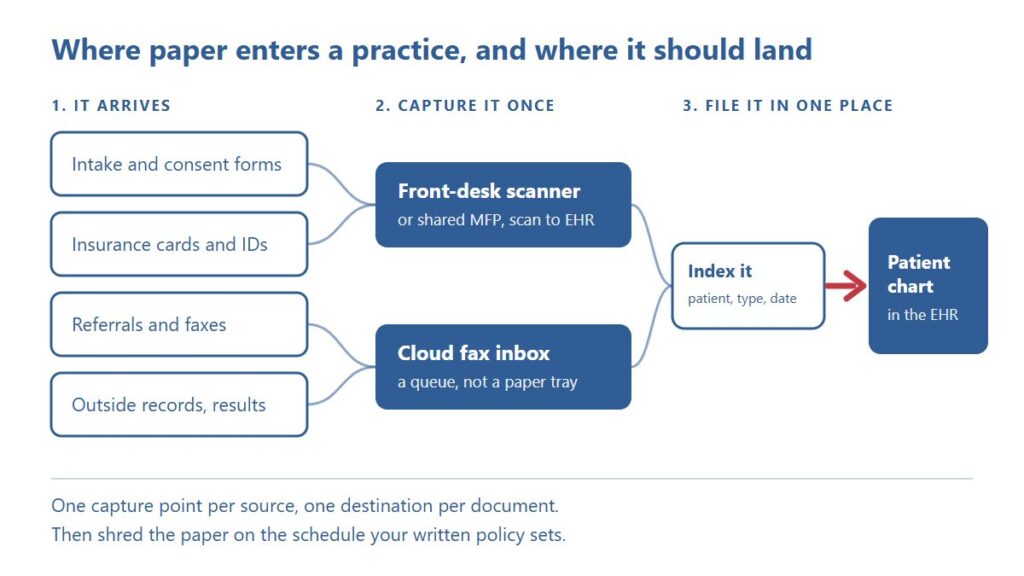
Define an approved capture route, destination and responsible owner for each document type. When the same document can arrive by fax, email, patient portal and paper, staff end up searching three places and filing duplicates. The diagram below shows the simplest version: capture each document once, index it to the right patient, and file it in the chart.
Should Patients Complete Intake Forms Before the Visit?
Usually, yes, if your EHR or practice management system already offers online forms or a patient portal. Pre-visit forms move the typing from your front desk to the patient’s own phone or computer, but automated chart entry depends on integration and still needs defined validation and exception handling. Ask your EHR vendor what’s already included in your subscription before you pay for anything separate.
Be realistic about who won’t use them. Some older patients, people without reliable internet and patients with vision or language barriers will still arrive with paper or need help at the desk. Keep a clean paper path: a current form, a clipboard, and a scanner close enough that the form is captured before the patient reaches the exam room. A hybrid process is normal. The goal is fewer paper forms, not zero.
Consider a separate forms platform only after identifying a specific gap in your EHR. Ask for a demonstration with fictional records, including incomplete forms, duplicate patient names and a failed upload. Confirm integration, licensing and support in writing rather than assuming that a campaign example is included in a proposal.
How Should Referrals, Prior Authorizations and Faxes Be Handled?
Fax isn’t leaving healthcare yet. Referrals, orders and records requests still arrive that way, and HIPAA allows providers to share information for treatment by fax when reasonable safeguards are in place. The weak spot is the paper tray: pages sit in the open, get mixed with another patient’s pages, and depend on someone walking by at the right time.
Cloud fax can reduce tray handling when it is configured and monitored. Incoming faxes arrive as PDFs in a shared digital inbox, where authorized staff can assign and review them before filing them to the correct chart. Outgoing faxes go out from a desktop, which cuts trips to the machine. Confirm compatibility, subscriptions, access controls and any connector requirements for your exact devices and fax service. Our guide to cloud fax and why offices are ditching the fax machine covers the details.
Give every referral or authorization task an owner, a due time and an escalation path. A fax delivery receipt does not show that the intended clinician reviewed the information or that a payer approved the request. Check for failed transmissions and requests that are waiting for missing documentation.
Scanning to the EHR: What Works and What Breaks
Two common scanning approaches to ask your EHR vendor about are folder imports and direct workstation capture. Staff scan to a watched network folder and the EHR imports from it, or the EHR connects directly to a scanner at the workstation. Neither method is universal. Confirm accepted file formats, supported drivers, permissions, patient matching and error handling with the EHR vendor before buying equipment.
Where it usually breaks is indexing. A scan that lands in a folder called “Scans” with a date-stamp filename still needs someone to open it, figure out whose it is and file it. Set up named scan buttons, such as Intake, Insurance Card, Referral and Outside Records, that drop files into the right queue, and agree on one naming rule everyone follows. Test correct-patient filing, rejected files and duplicate documents before approving the medical practice workflow.
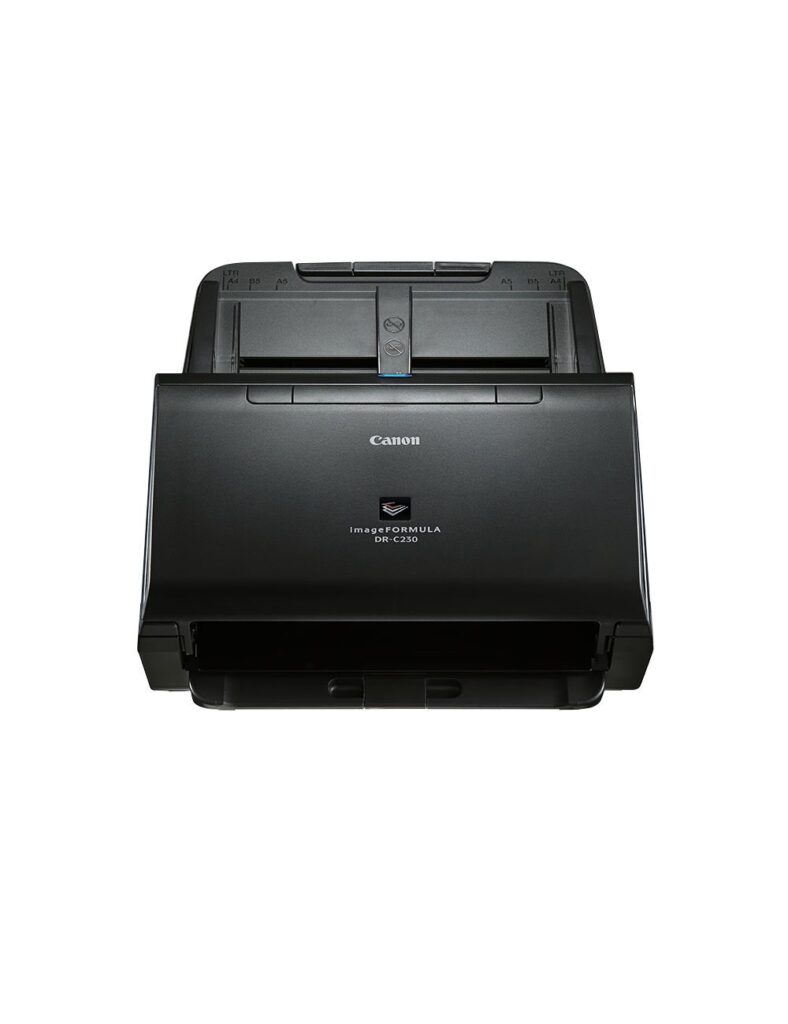
Image settings matter too. Insurance cards need both sides, usually in color. Signed consent forms can often go in grayscale at a moderate resolution to keep files small and readable. A compact desktop scanner at check-in that handles plastic cards and mixed paper sizes is often a better buy than walking every card to the copier. Our guide to Canon imageFORMULA scanners compares desktop models by volume and use.
Desktop Printers or Shared Devices: Which Fits Each Room?
This is one of the most common equipment questions we hear from medical offices, and the honest answer is both, in the right places. A shared multifunction printer in a central workroom handles volume: faxing, large scan jobs, reports and copies. Compare actual service terms, supply costs, capacity, walking time and security responsibilities before deciding.
Desktop printers earn their place where walking costs time or creates risk. Check-in and check-out desks print receipts, work notes and after-visit summaries. A nurse station may print labels and forms all day. A small device at each of those spots sends paper straight to the person who needs it instead of leaving it on a shared tray, which is a quiet but real improvement to your medical practice workflow.
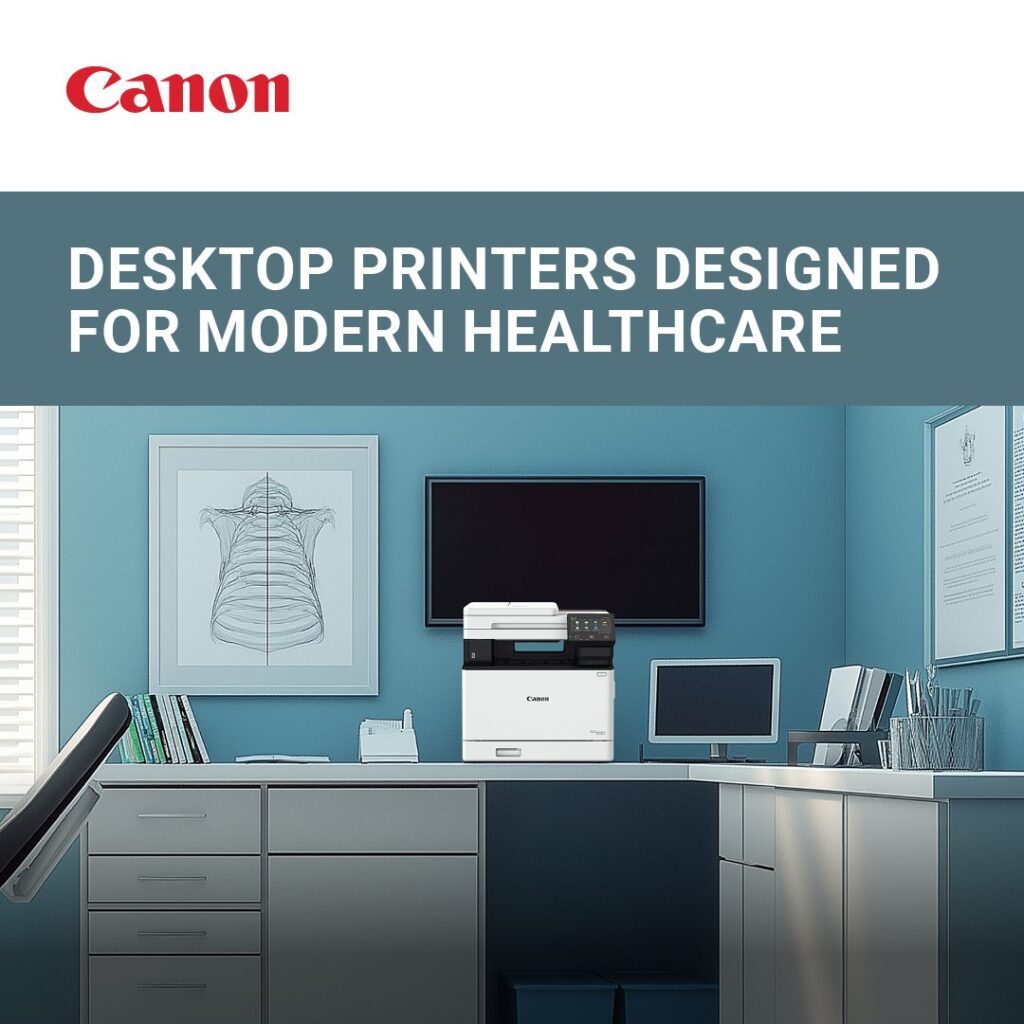
Canon’s imageFORCE desktop families offer printer and multifunction configurations. Capabilities and security options vary by model; a print-only device cannot replace an MFP’s scan and copy functions. Confirm the quoted model’s authentication, print-release, storage and management requirements, including any optional software subscription. Do not assume that a desktop device has every control offered on a larger imageFORCE model.
What not to do: put a printer in every exam room by default. Each one adds supplies, service and another device to patch and secure, so compare the full operating cost rather than assuming that more devices are better. Our look at the newer imageFORCE desktop models covers speeds and features if you do need one.
What Does It Cost to Improve a Medical Practice Workflow?
We won’t put a number here, because the right answer depends on what you already own. The cost drivers are predictable: any new hardware (a check-in scanner, a desktop printer, a replacement multifunction printer), software subscriptions (cloud fax, print management, e-forms), setup and EHR integration work, and staff training time. Some EHR vendors charge for scanner or interface setup, so ask them too.
Start with configuration changes: scan buttons, naming rules, print defaults and printer placement. These still take staff or provider time. Ask for a written, itemized proposal separating hardware, software, integration, training and ongoing support. Review lease and service agreements individually; inclusions, cancellation terms, software and installation charges depend on the actual contract.
Problems and Risks to Plan For
- Integration surprises. Confirm with your EHR vendor that the scanner, folder import or print management tool is supported before anyone signs.
- Staff pushback. Changes stick when the people doing the work help design them. Pilot at one desk first.
- A scanning backlog. Going digital creates a pile of old paper. Set scanning priorities and a records retention policy with the appropriate adviser. Do not destroy originals merely because a scan exists; legal holds, record type, quality checks and applicable retention rules matter.
- Privacy gaps. A vendor that stores or can access patient information, such as a cloud fax provider, generally needs a business associate agreement (BAA). Equipment should be configured to support HIPAA requirements, and the practice remains responsible for its own compliance.
A change to a medical practice workflow may affect patient information, so plan the security settings along with the steps. For device-level details, see our guide to printer and copier HIPAA safeguards and our article on what HIPAA requires from your technology.
A 30-Day Plan for a Better Medical Practice Workflow
- Week 1: list every paper source, count every device, and ask front-desk staff where they lose time.
- Week 2: review configuration: scan buttons, naming rules, print defaults and printer placement.
- Week 3: pilot cloud fax or a desk scanner at one station and time how long filing takes.
- Week 4: review the results, then decide what to roll out, replace or leave alone.
If you’re in Tallahassee, Thomasville or anywhere in North Florida or South Georgia, ABS can walk your office, map where paper goes and tell you honestly which changes are worth making. Call (850) 222-2308 or request a free on-site assessment. You’ll get a plain-English look at your medical practice workflow, not a pitch for equipment you don’t need.
Request your free on-site assessment
It takes about a minute. Only your name, email and phone are required.
Free, with no obligation. We use your information to arrange your visit, and we never sell, rent or share it with third parties for marketing. Someone from ABS will contact you to confirm the details.
Frequently Asked Questions
What is a medical practice workflow?
It’s the series of steps a practice uses to move patients and their paperwork from scheduling and intake through the visit, billing and records. Improving it means removing duplicate steps, capturing documents once and filing them in the EHR.
Do we need new equipment to cut paperwork?
Not always. Many current multifunction printers can scan to folders and work with cloud fax. A desk scanner or a better-placed printer may be the only purchase, and some improvements are just settings.
Are desktop printers less secure than a shared copier?
Not necessarily. A desktop printer next to the person printing keeps pages off a shared tray. A shared device needs secure release to do the same. Either way, devices should be configured to support HIPAA requirements.
Does ABS work with practices outside Tallahassee?
Yes. We serve medical offices across North Florida and South Georgia from our Tallahassee office, including Thomasville. Confirm availability for the specific location and requested work.
Related Resources from ABS
- Copiers and IT for Medical Offices
- Printer and Copier HIPAA Safeguards for Medical Offices
- IT Support for Medical Practices: What HIPAA Requires from Your Technology
- Cloud Fax: 5 Smart Reasons to Ditch the Fax Machine
- Canon imageFORMULA Scanners: Which One Fits Your Workflow?
- Managed Print Services
Sources and verification: HHS guidance on physician-to-physician faxing supports treatment disclosures with reasonable safeguards. HHS business associate guidance supports review of vendors that handle protected health information. Canon’s DR-C230 information and Canon’s imageFORCE information support equipment examples, not compatibility with every EHR or a guarantee of compliance. The 30-day plan and process checks are editorial recommendations, not regulatory deadlines or promised savings. This article is general information; confirm legal and compliance obligations with your own adviser.