
The best way to evaluate a Ricoh SD feeder is to bring the kinds of documents your office scans every day and follow them all the way to the finished file. Watch how much preparation they need, check whether the scans are easy to read, and try finding the files afterward. That will tell you far more than watching a perfect stack of paper fly through the machine.
Think about the awkward part of your current scanning routine. Do employees separate receipts from full-size pages? Spend time straightening images? Walk back to their desks only to discover that a page is missing? A useful demonstration starts with one of those frustrations and shows whether the proposed setup makes the job easier.
What makes the Ricoh SD feeder different?
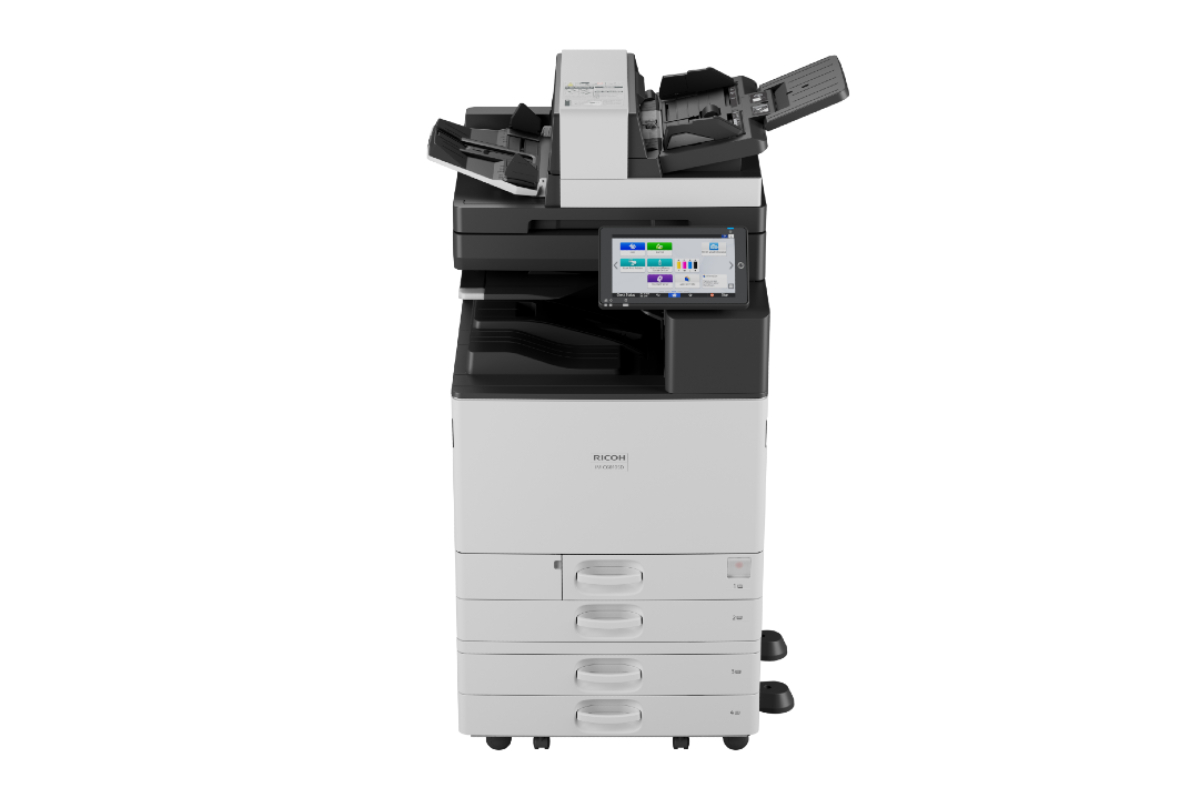
The IM C3510SD, IM C4510SD and IM C6010SD combine an office copier and printer with a straight-path, single-pass document feeder. The feeder uses paper-handling technology from PFU, a Ricoh company that makes document scanners. Ricoh designed it to handle a wider variety of originals and reduce jams associated with feeding them through a curved paper path.
That is the reason to pay attention to these models: an office that regularly scans different sizes and types of paper may have more to gain than one that mainly scans clean, letter-size sheets. Our Ricoh SD Series overview explains the platform, and Ricoh’s product announcement describes the feeder’s background.
Here are seven questions to take to your demonstration.
1. Can it handle the documents that slow us down?
Bring a small collection that looks like a normal day’s work. It might include two-sided forms, thin receipts and pages of different sizes. Use made-up information or redacted copies so the demo does not expose customer, employee or financial records.
Before loading the stack, show the demonstrator anything unusual. Ask what can go together, what needs a different setup, and what should go on the glass. A straight path expands the possibilities, but the machine’s loading instructions still matter. Valuable or damaged originals deserve particular care.
Ricoh’s U.S. brochure lists support for plain paper from 38–413 gsm, carbonless paper and plastic cards up to 1.4 mm thick. You do not need to memorize those numbers. The useful question is, “Can we scan this, and what would our staff have to do first?”
2. How much work is there before and after scanning?
Ask to see the whole job, starting before anyone loads the feeder. Count the time spent sorting, preparing and separating documents, as well as the time spent checking and saving the results. Those steps are often where a demonstration becomes relevant to everyday office work.
For example, imagine a packet with a cover sheet, several two-sided forms and a receipt. If your office needs separate files, have the demonstrator show how that happens. Does an employee split them afterward? Does additional software do it? Which steps would someone repeat for the next packet?
Use the same documents when comparing equipment. A clean stack on one machine and a mixed packet on another will not give you a useful comparison. Note the settings used, too: color, resolution and file format can affect the result.
3. Are the finished scans clear and complete?
Open the saved files on a computer, where someone would normally review them. Look at small print, faint marks, page edges and both sides of the originals. Make sure every page is present, facing the right way and in the right order.
The Ricoh SD feeder includes automatic adjustments for skew, orientation and image size. Try those features with the documents you brought. A neat preview on the copier screen is encouraging; seeing a complete, readable file at your desk is more useful.
Pay attention to details that matter in your work. A clipped reference number or missing handwritten note may be more troublesome than a slightly crooked page. If something needs another scan, ask how easy it is to correct just that part of the job.
4. Can we search the files and put them where they belong?
A scanned page can look fine while still being hard to find later. If your staff need searchable PDFs, try searching the finished file for a few words or reference numbers from the sample documents.
Optical character recognition, usually called OCR, adds searchable text to an image. Ricoh lists searchable PDF as requiring an optional OCR unit or optional software, so ask which option is being demonstrated and whether it is in your quote. Finding a word in a PDF is also different from automatically entering invoice details into an accounting system; ask to see the specific task you need.
Then follow the file to its destination. Can the employee who needs it open it from the correct folder or application? Is the name useful? Does anyone have to move or rename it? These questions connect the Ricoh SD feeder to the rest of your document process, including any separately licensed software.
5. Does the speed make a difference to our workday?
The U.S. brochure lists the same 300-sheet feeder and scan ratings across all three SD models: up to 100 images per minute for one-sided scanning and 200 for two-sided scanning. An image means one captured side of a page.
Those ratings help compare specifications, but your own packet gives the numbers context. Time the job until the file has been checked and saved where it belongs. If preparation or filing takes most of the time, a faster feed rate may not be the biggest opportunity.
The models differ in print speed: 35, 45 and 60 pages per minute. Buying the fastest printer therefore does not automatically buy a faster feeder. Our Ricoh SD Series comparison covers that choice in more detail.
6. Can the person who scans every day use it comfortably?
Let that employee try the Ricoh SD feeder after a short explanation. Can they choose the right job, load the documents and find the result without someone coaching every step? Their reaction may reveal something a specification sheet cannot.
Ask how to deal with a missing page, an unreadable scan or a folder that is temporarily unavailable. There is no need to create a jam or interrupt the office network. A clear explanation of what the user sees and whom to call is enough to start the conversation.
Training should cover the job your staff will actually perform, including the occasional problem. Find out whether help with the device, scanning software and network destination comes from the same team or different providers.
7. Will the quote include what we just saw?
Before leaving, ask for the model, installed options and software used in the demonstration. Compare that list with the proposal, including setup, staff training, file destinations and support. If a useful feature requires an extra license, this is the time to find out.
Keep a few nonconfidential sample files and a short note about what worked well and what still needs an answer. You do not need an elaborate report. You need enough detail to compare the demonstration with the equipment and services being offered.
A Ricoh SD feeder may be a good fit for departmental scanning. A dedicated production scanner may still make more sense for a central scanning operation with extensive document processing; Ricoh discusses that distinction here. The best choice is the one that suits the job.
Talk through your scanning routine with ABS
Tell us what your office scans, what takes too long, and where the finished files need to go. Those details help us discuss an appropriate setup and the availability of a demonstration.
Advanced Business Systems is based in Tallahassee and serves North Florida and South Georgia, including Thomasville. Call (850) 222-2308 or request a quote to start the conversation. A description of the job is enough for the initial inquiry; keep confidential documents out of the form.