
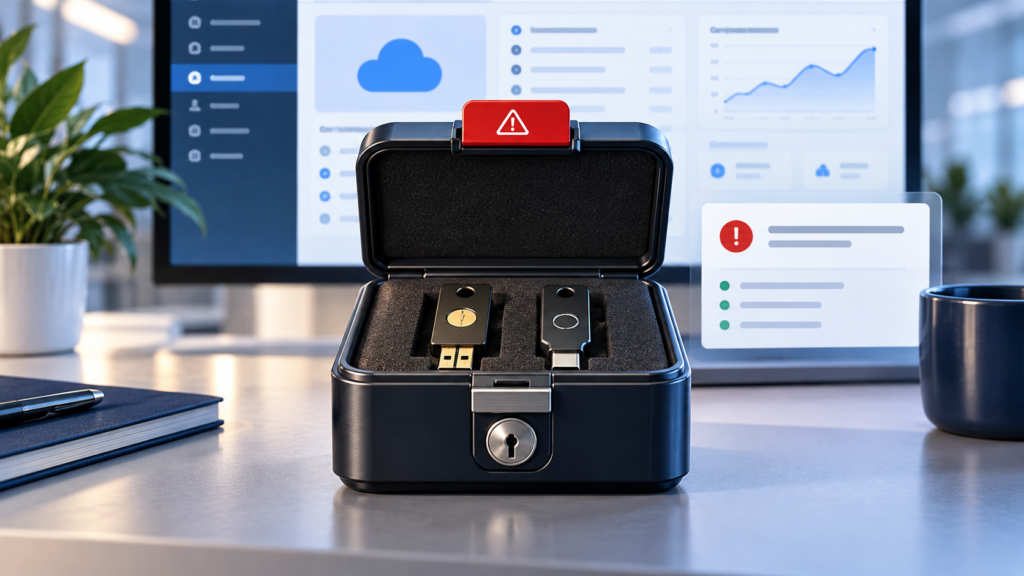
A Microsoft 365 emergency access account is a highly privileged, cloud-only administrator identity reserved for the rare moment when normal administrative accounts cannot be used. Often called a break-glass account, it can help a business recover from an identity-provider outage, a failed authentication method, a Conditional Access mistake, or the unexpected loss of its available administrators.
Microsoft currently recommends maintaining at least two emergency access accounts. That redundancy matters: one credential, device, storage location, or configuration can fail at the same time the business needs it most.
An emergency account is not a shortcut around ordinary security. Because it holds permanent Global Administrator rights, poor design can create a serious attack path. The safer goal is a capability that is difficult to misuse, easy to notice when used, and tested often enough to trust.
What problem does an emergency access account solve?
Microsoft 365 administration depends on Microsoft Entra ID, the identity system behind user accounts, authentication, roles, and access policies. If every normal administrator becomes unable to sign in, the business may also lose the ability to manage email, users, security settings, applications, and recovery actions.
That lockout can happen without a cyberattack. Microsoft lists scenarios such as an identity-provider outage, unavailable authentication devices, the departure of the last available administrator, a natural disaster, or a privileged-role workflow with no active approver. A policy error can also block the same people who would normally correct it.
A Microsoft 365 emergency access account provides an independent, last-resort route into the tenant. It should be used only for a genuine emergency or a controlled validation drill.
1. Maintain at least two independent accounts
A Microsoft 365 emergency access account should have a redundant partner. Create at least two emergency access accounts, not one. If a security key fails, a credential expires, a safe becomes inaccessible, or one account is misconfigured, the second account preserves a recovery path.
For each Microsoft 365 emergency access account, independence should extend beyond the usernames. Avoid storing both credentials and both authentication devices together. Two accounts in one envelope, protected by the same device and held by one person, can still fail as a single system.
Document who is authorized to access each account, who can approve use, and how the business can reach those people during an outage. The process should not depend entirely on the same IT provider, employee, phone, or location that may be unavailable.
2. Make them cloud-only identities
Microsoft recommends cloud-only accounts that use the tenant’s onmicrosoft.com domain. They should not be synchronized from an on-premises directory or depend on a federated identity provider.
That separation is important. If the normal sign-in path is broken, an emergency account that relies on the same directory, server, connector, or federation service may fail with it.
Use a neutral account name that does not identify an employee. These accounts belong to the organization, not to an individual. Record their purpose in the tenant and in the business’s recovery documentation without exposing sensitive credentials in an ordinary shared document.
3. Use phishing-resistant authentication
An emergency account should not be password-only. Microsoft’s current guidance recommends a passkey using FIDO2 security keys, or certificate-based authentication when the organization already operates suitable public-key infrastructure.
Choose an authentication method that differs from the method used by normal administrators. For example, if normal admins depend on a mobile authenticator, the emergency accounts could use dedicated hardware security keys. This reduces the chance that one outage or device loss blocks every path.
Do not connect the emergency identity to an employee’s personal phone. Select credentials that will not expire or be removed automatically because they are rarely used. Store recovery information securely, and never put a security key and a plain-text password together in an unlocked desk.
For everyday administrators, ABS also recommends planning a broader phishing-resistant MFA rollout. Emergency access is one narrow part of a complete identity-security program.
4. Keep permanent Global Administrator access narrow
Microsoft says the emergency accounts should have the Global Administrator role assigned as permanently active rather than merely eligible through Privileged Identity Management. That exception exists because an emergency identity must work when the normal activation or approval process is unavailable.
Permanent privilege increases risk. The accounts should therefore be reserved for emergencies and testing, never email, web browsing, application ownership, routine administration, or vendor convenience.
Keep the broader administrator population small. Microsoft’s role guidance recommends fewer than five Global Administrators and using lower-privilege roles for routine tasks. Emergency accounts do not eliminate the need for least privilege everywhere else.
5. Design Conditional Access exclusions carefully
Microsoft recommends excluding emergency access accounts from Conditional Access policies that can block or restrict sign-in. Otherwise, a policy requiring an unavailable device, network, or authentication workflow could disable the recovery path at exactly the wrong time.
This does not mean the accounts should be unprotected. Their phishing-resistant credentials, secure storage, restricted use, and monitoring become especially important because the accounts sit outside some normal controls.
Create a dedicated emergency-access group so exclusions are visible and deliberate. Review every blocking policy, including future policies, and confirm the intended exclusion. Report-only policies do not block sign-in and generally do not require that exclusion.
Changes to Conditional Access deserve controlled testing. A small-business network and security assessment can help identify hidden dependencies before a policy moves from planning to enforcement.
6. Store credentials and devices in separate secure locations
Microsoft suggests secure, fireproof safes in separate locations. The practical objective is to protect the credentials from theft while keeping them available during a fire, storm, office closure, or other disruption.
Decide in advance:
- who can open each storage location;
- whether two authorized people must coordinate access;
- how identity and approval will be confirmed during an emergency;
- who records the checkout and return of a security key;
- what happens if a key, envelope, safe combination, or authorized person changes; and
- how the business retrieves the credentials if its primary building is inaccessible.
Do not store the only copy in a password manager that depends on the affected Microsoft tenant. A recovery process is strongest when it does not quietly rely on the system it is meant to recover.
7. Alert on every sign-in and change
Normal activity for an emergency account is no activity. Microsoft recommends a high-priority alert whenever one of these accounts is used or changed.
Monitor successful and failed sign-ins, password changes, authentication-method changes, and role or permission changes. Route alerts to more than one responsible person, and choose at least one notification path that does not depend solely on the Microsoft 365 tenant under investigation.
An alert is only useful when someone knows what to do with it. The response procedure should distinguish a scheduled test from an unplanned event, identify who validates the activity, and define when to begin an incident response.
If an emergency account signs in unexpectedly, treat it as a high-priority security event. Preserve logs, secure the account, review actions taken, and involve qualified security or legal advisers when the facts require them.
8. Test at least every 90 days
Microsoft’s current guidance says to validate each Microsoft 365 emergency access account at least every 90 days. A validation should confirm more than the existence of two usernames.
Use a documented drill to verify that:
- each authorized person can locate the correct procedure;
- the account and security key still authenticate;
- Conditional Access does not block the account;
- the Global Administrator role remains active;
- a safe, limited administrative task can be completed;
- sign-in and change alerts reach the intended recipients;
- the activity appears in the expected audit logs; and
- the credential is returned to secure storage.
Schedule an additional test after a material change to administrators, authentication methods, security keys, licenses, Conditional Access, monitoring, storage, or the business’s IT provider.
Record the date, tester, result, exceptions, and corrective actions. Do not place live credentials in the test record. The purpose is to prove readiness without creating another copy of the secret.
9. Define permitted use and post-event review
Write down what counts as an emergency for the Microsoft 365 emergency access account. Appropriate uses can include tenant lockout, recovery from a failed identity service, repair of a blocking access policy, or a planned validation drill. Routine license changes, user support, mailbox access, or day-to-day administration do not qualify.
Require authorized approval when circumstances allow. In a fast-moving incident, the procedure should still identify who may act, which actions are permitted, and how the business will document decisions afterward.
After every use, review the sign-in, administrative changes, duration, people involved, alerts, and reason for access. Confirm that the account returned to its expected protected state. Rotate or replace credentials if exposure is suspected, and update the procedure when the exercise reveals a weak point.
A small-business implementation checklist
Use this Microsoft 365 emergency access account checklist with the person or provider responsible for Microsoft 365:
- ☐ At least two cloud-only emergency accounts exist.
- ☐ Each account uses the tenant’s
onmicrosoft.comdomain. - ☐ Neither account depends on on-premises synchronization or federation.
- ☐ Phishing-resistant authentication is configured and tested.
- ☐ The authentication method differs from normal administrator methods where practical.
- ☐ Global Administrator access is permanently active for these accounts.
- ☐ The accounts are excluded from blocking Conditional Access policies.
- ☐ Credentials and devices are stored securely in separate locations.
- ☐ Every sign-in and material account change produces a high-priority alert.
- ☐ Authorized users and approval steps are documented.
- ☐ The accounts are not used for email or routine work.
- ☐ A validation drill occurs at least every 90 days and after material changes.
- ☐ Results and corrective actions are recorded without recording live secrets.
- ☐ The business, not only an outside provider, knows how controlled recovery will work.
Frequently asked questions
Is a Microsoft 365 emergency access account the same as a break-glass account?
Yes. Break-glass account is a common name for the cloud-only emergency administrator identity used when normal administrative access is unavailable. Microsoft uses the term emergency access account.
Should an emergency access account bypass multifactor authentication?
No. A Microsoft 365 emergency access account should use phishing-resistant authentication. Microsoft’s current design uses such as a FIDO2 passkey or, where appropriate, certificate-based authentication. The account may need exclusions from blocking Conditional Access policies, but that does not justify password-only access.
Should our IT provider be the only party that controls the account?
The business should understand and approve the custody, authorization, monitoring, and recovery process. A provider may help implement and manage it, but exclusive undocumented control creates a continuity risk if the provider, its staff, or its systems become unavailable.
Can the two security keys be stored together?
That weakens redundancy. Separate secure locations reduce the chance that theft, fire, flooding, or an inaccessible building removes both recovery paths at once.
How often should emergency access accounts be tested?
Microsoft recommends validation at least every 90 days. Test again after material changes to administrators, authentication, Conditional Access, monitoring, licenses, storage, or service providers.
Prepare the account before the emergency
A Microsoft 365 emergency access account is valuable only when it works independently, stays protected, and produces an unmistakable alert whenever it is touched. Two cloud-only accounts, phishing-resistant authentication, careful exclusions, separate secure storage, monitoring, and quarterly validation create a practical foundation.
Advanced Business Systems helps organizations in Tallahassee and across North Florida review Microsoft 365 administration, identity security, account ownership, monitoring, and recovery planning. Explore our managed IT and network services. If you would like us to review Microsoft 365 emergency access and recovery readiness in your environment, complete the form below.